Key takeaways
- Let shaders finish after driver updates. A recent Delta Force patch fixed abnormal shader loading after graphics driver upgrades, which shows how sensitive the game is to a fresh shader cache. After any driver update, give the first launch and first match time to rebuild before judging input feel.
- Keep your mouse at 1000 Hz. That is a 1 ms reporting interval; 4000 and 8000 Hz shave fractions of a millisecond but add CPU load, which can hurt in CPU-heavy Warfare matches.
- Turn off driver-level frame generation such as AMD Fluid Motion Frames or NVIDIA Smooth Motion in the per-game profile, for the same reason as in-game frame generation.
- Trim overlays and background capture. Several overlays, instant replay and browser video all compete for CPU time with a large-scale shooter.
- Use 16 GB of RAM in dual channel. The recommended spec asks for 16 GB, and running Warfare on 8 GB with a browser open invites paging hitches that feel like input delay.
- On laptops, plug in, select the best-performance power mode and confirm the game runs on the discrete GPU.
To reduce input lag in Delta Force on PC, set NVIDIA Reflex to On + Boost (or enable AMD Anti-Lag in the Radeon driver), turn V-Sync and any frame generation off, play in Fullscreen, and lower the GPU-heavy settings until your graphics card is no longer pinned at 99% usage in Warfare. If you own a G-Sync or FreeSync monitor, add a frame cap a few frames under its refresh rate. Leave Windows security features alone while you do this: Delta Force’s anti-cheat has been bringing Secure Boot and TPM 2.0 into its protection stack, so the old advice of disabling them to save a millisecond can stop you from playing at all.
Why Delta Force can feel sluggish
Delta Force mixes very different workloads. Hazard Operations and the 5v5 Detonation mode added during the second-anniversary Reorientation season in September 2026 are relatively contained, while Warfare piles large player counts, vehicles, artillery and smoke into the same frames. That is where the GPU tends to hit 99% usage, and a maxed-out GPU is exactly when finished CPU frames start waiting in a queue. Each queued frame adds a full frame time of delay before your click appears on screen, so the same mouse and monitor can feel crisp in Detonation and heavy in a big Warfare push.
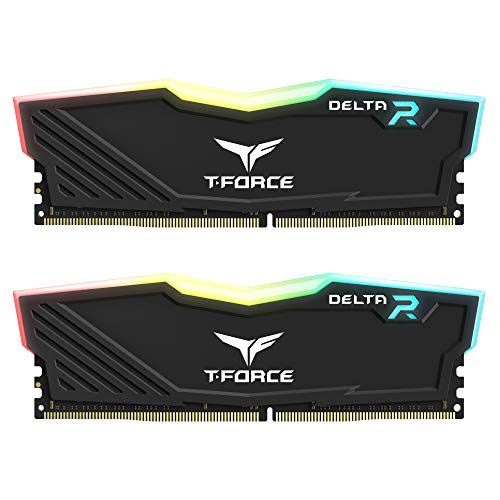
TEAMGROUP T-Force Delta RGB DDR4 16GB (2x8GB) 3600MHz (PC4-28800) CL18 Desktop Gaming Memory Module Ram TF3D416G3600HC18JDC01 - Black
Included for 'How to Reduce Input Lag in Delta Force: Settings and Fixes' because the listing specifies Black, details this guide uses to compare options.
View on Amazon
Teamgroup T-Force Delta Rgb Ddr5 Ram 48GB (2x24GB) 7200MHz PC5-57600 CL34 M-DIE Desktop Memory Module Ram for 600 700 Series Chipset XMP 3.0 Ready Black FF3D548G7200HC34ADC01
Included for 'How to Reduce Input Lag in Delta Force: Settings and Fixes' as a relevant option in this category; details come from the product listing.
View on AmazonThe latency math
| Frame rate | Frame time | Extra delay from 2 queued frames (GPU-bound, no Reflex) |
|---|---|---|
| 60 FPS | 16.7 ms | about 33 ms |
| 90 FPS | 11.1 ms | about 22 ms |
| 144 FPS | 6.9 ms | about 14 ms |
| 240 FPS | 4.2 ms | about 8 ms |
This is arithmetic rather than a benchmark, and real queue depth varies with the driver, the scene and the patch, but it explains the two rules behind every fix in this guide: empty the queue with Reflex, Anti-Lag or a frame cap, and raise frame rate so each remaining frame costs less. A player sitting at 60 FPS in Warfare gains far more from these changes than one already holding 240 FPS.
Check what your hardware can use
| Component | Minimum | Recommended |
|---|---|---|
| CPU | Intel Core i3-4150 or AMD FX-6300 | Intel Core i5-6500 or AMD Ryzen 5 1500X |
| Memory | 8 GB | 16 GB |
| GPU | GeForce GTX 660, Radeon HD 7870 or Intel Arc A380 | GeForce GTX 1060 5 GB, Radeon RX 5500 XT or Intel Arc A580 |
| API and storage | DirectX 12, 88 GB | DirectX 12, 88 GB |
One detail in that list matters for latency. NVIDIA Reflex works on GeForce GTX 900 series cards and newer, so a GTX 660 at the bottom of the spec sheet cannot use it. On those cards, and on Intel Arc, a well-chosen frame cap becomes your main tool for keeping the render queue short.
Delta Force settings for lower input lag
| Setting | Value | Reason |
|---|---|---|
| Display Mode | Fullscreen | The most direct path from the game to the display |
| V-Sync | Off | V-Sync waits for each refresh and lets frames pile up |
| NVIDIA Reflex | On + Boost | Keeps the render queue near empty; Boost holds GPU clocks up during CPU-bound moments |
| Frame generation | Off | Generated frames look smoother, but your input still waits on real frames, so delay goes up |
| Upscaling (DLSS or FSR) | Quality mode, only if GPU-limited | Raises FPS without inserting frames; skip it if you already hold your refresh rate and want the sharpest long-range image |
| Ray Tracing | Off | A heavy GPU cost with little competitive benefit |
| Global Illumination, Volumetric Fog, Shadow Quality, Reflections | Low | The largest GPU loads in smoky, large-scale fights |
| Motion Blur and Depth of Field | Off | No latency change, but clearer motion and target edges |
| Texture Quality | High with 8 GB of VRAM or more | Costs little FPS when it fits in VRAM; lower it on 4 to 6 GB cards |
Picking a frame cap
| Your setup | What to do |
|---|---|
| NVIDIA GPU with a G-Sync or G-Sync Compatible monitor | Reflex On + Boost, V-Sync on in the NVIDIA driver, G-Sync on. Reflex then holds FPS slightly under refresh by itself; alternatively cap 3 to 4 FPS below refresh in the driver. |
| AMD GPU with a FreeSync monitor | Anti-Lag on in Adrenalin and a driver cap 3 to 4 FPS under refresh, for example 141 on a 144 Hz panel. |
| Fixed-refresh monitor and plenty of performance | Uncapped or a high cap you never drop below; tearing is the trade-off for the lowest delay. |
| GPU without Reflex (GTX 600 and 700 series, Intel Arc) | Cap 5 to 10% below your typical Warfare frame rate. If you average 75 FPS, a 68 to 70 FPS cap keeps the GPU just under full load, so frames stop queuing. |
The last row is the most overlooked fix. A slightly lower but steady frame rate with an idle-capable GPU often feels more responsive than a higher number reached with the GPU pinned at 99%, because the queue disappears.
Fixes outside the game
- Let shaders finish after driver updates. A recent Delta Force patch fixed abnormal shader loading after graphics driver upgrades, which shows how sensitive the game is to a fresh shader cache. After any driver update, give the first launch and first match time to rebuild before judging input feel.
- Keep your mouse at 1000 Hz. That is a 1 ms reporting interval; 4000 and 8000 Hz shave fractions of a millisecond but add CPU load, which can hurt in CPU-heavy Warfare matches.
- Turn off driver-level frame generation such as AMD Fluid Motion Frames or NVIDIA Smooth Motion in the per-game profile, for the same reason as in-game frame generation.
- Trim overlays and background capture. Several overlays, instant replay and browser video all compete for CPU time with a large-scale shooter.
- Use 16 GB of RAM in dual channel. The recommended spec asks for 16 GB, and running Warfare on 8 GB with a browser open invites paging hitches that feel like input delay.
- On laptops, plug in, select the best-performance power mode and confirm the game runs on the discrete GPU.
What not to change
Older latency guides suggest disabling Secure Boot, TPM or virtualization features. For Delta Force that advice has aged badly. The G.T.I. Security brief published in July 2026 described rolling out a DMA Shield and gradually adding Secure Boot and TPM 2.0 to the game’s protection, on top of the kernel-level Anti-Cheat Expert system listed on its store page. Any gain from those tweaks is tiny next to Reflex and a correct frame cap, and the risk is losing access to matches.
Is it input lag or network lag?
If your crosshair responds instantly but enemies teleport, hits register late or you get pulled back a few steps, the problem is the connection, not your PC. Use wired Ethernet, close uploads and cloud syncing while playing, and watch for packet loss rather than chasing more graphics settings. Delta Force patch notes have also fixed rubber-banding at the start of specific Hazard Operations maps, so if the issue only appears in one mode or map, it may be on the game’s side rather than yours.