Key takeaways
- Setting up a racing wheel on a PC takes four stages: mount it securely, connect it and install the maker's driver.
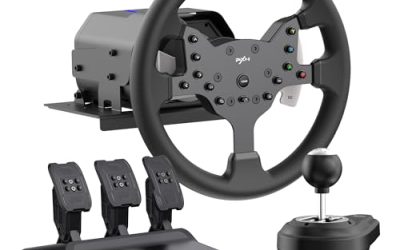
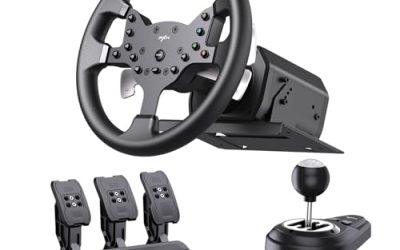
Setting up a racing wheel on a PC takes four stages: mount it securely, connect it and install the maker’s driver, calibrate the axes in the control software, and map the controls inside each game. Skip the driver or calibration step and most “my wheel feels wrong” problems follow you into every race.
This guide is written for someone unboxing a wheel and pedal set for the first time, or moving a wheel from a console to a PC. The steps apply across brands, though menu names differ, so treat the process below as a map and follow your wheel’s own manual for exact screens.
Mount the Wheel Before You Plug Anything In
A wheel that moves on the desk makes every setting feel inconsistent, so solve the mounting first. Most wheels clamp to a table edge, while heavier units with strong force feedback motors benefit from a dedicated stand or rig.
Desk Clamp Setups
Clamp the wheel base to a sturdy desk, not a wobbly folding table. Tighten the clamp evenly and test by turning the wheel hard in each direction. If the desk flexes or the base creeps, reposition it or add a thicker board under the clamp point.
Wheel Stands and Rigs
A folding stand or a full cockpit lets you set seat position, pedal distance and wheel height independently. If you are building toward a rig, make sure the mounting pattern on the wheel base matches the stand before you buy.
Pedal Placement
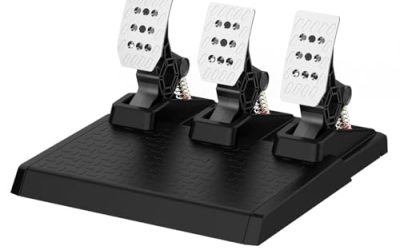
Fix the pedals so they cannot slide forward under braking. A non-slip mat, a rear stopper or screws into a pedal plate are all common solutions. Position them so your knees are slightly bent at full press.
Connect, Power Up and Install Drivers
Plug in the power supply for the wheel base first, then connect the USB cable directly to a port on the PC. Avoid unpowered USB hubs, which can cause dropouts and random disconnects. Connect the pedals to the base or to the PC, depending on how your set is designed.
Download the latest driver and control panel from the manufacturer’s support page rather than relying on whatever Windows installs automatically. After installation, restart the PC. Then open the control software and check that the wheel and pedals appear. Look for a firmware update option, and apply it with the wheel plugged in and left undisturbed until it finishes.
Calibrate and Set the Basics
Open the control panel’s calibration or properties screen. Turn the wheel from lock to lock, press each pedal fully, and confirm the on-screen bars move across their entire range without jumping. If an axis stops short, run the calibration wizard in the driver software.
| Setting | What it does | Typical starting approach |
|---|---|---|
| Rotation range | How many degrees the wheel turns lock to lock | Match the car type in each game, or let the game control it |
| Overall strength | Total force feedback output | Moderate, then adjust in each game |
| Centering spring | Pulls the wheel back to center | Off or low for most modern racing games |
| Pedal deadzone | Ignores tiny pedal movements | Minimal, increase only if the pedal registers by itself |
| Pedal curve | Changes response across travel | Linear until you know what you want |
One common trap is stacking settings. If the driver software and the game both apply a spring, a damper or a range limit, the effects multiply. Keep the driver on a simple, neutral profile and let each game do the fine tuning.
Map Controls and Tune Inside the Game
Launch your first game and open the controller settings. Most modern titles detect popular wheels automatically, and you can confirm the steering, throttle, brake and clutch axes by pressing each one. Assign gear shifts, pit limiter and look-back functions to buttons that your hands reach without leaving the rim.
- Set steering rotation in the game or the driver, not both.
- Reduce steering assists such as automatic correction if the car feels like it fights you.
- Lower the force feedback until the wheel is firm but not clipping, which happens when strong forces flatten into a constant push and details disappear.
- Adjust the brake pedal’s sensitivity so a firm press reaches full braking without needing to stomp.
Save a separate profile for each game if the software allows it. A rally title and a circuit racing sim want different rotation and strength, and switching profiles is faster than retuning from scratch.
Before You Start Checklist
- Confirm the wheel lists PC support, since some models are console-only or need a particular mode.
- Free a USB port on the motherboard rather than using a hub.
- Check your power outlet and cable length, because the base usually has a bulky adapter.
- Download the driver and manual before you begin.
- Close other control software that could conflict, such as extra controller mapping tools.
- Clear space for the pedals and make sure the chair will not roll backward.
Fixing Common First-Day Problems
If the wheel is detected but not responding in game, check that the game is set to the correct input device and that no other controllers are conflicting. If steering feels vague at the center, a deadzone in the driver or game is the usual cause. Reduce it until the car reacts to small inputs. If the wheel suddenly goes limp or disconnects, test a different USB port and cable, and watch for overheating on long sessions. In 2026 most wheel makers publish updated drivers regularly, so a fresh install often fixes odd behavior after a Windows update.
Related guides
- Gaming Headset Noise Isolation Vs Active Noise Cancellation
- Does Gaming Headset Noise Cancellation Work On Microphone
- How Much Does It Cost To Run A Gaming Pc Per Month
Frequently Asked Questions
Do I need to install drivers for a racing wheel on PC?
Usually yes. Windows may recognize the wheel as a basic controller, but the maker’s driver unlocks force feedback, full button mapping and firmware updates.
Why does my wheel only turn part of the way in game?
The rotation range may be set too low in the driver or the game. Set the range once, in the place your game expects it, and run calibration again.
Can I use a console wheel on PC?
Many can, but compatibility varies by model and mode. Check the manufacturer’s listing for PC support before buying or switching platforms.
How strong should force feedback be?
Aim for a setting where the wheel communicates grip and bumps without fighting you or flattening into a constant push. Start moderate and raise it until details vanish, then back off slightly.
FAQ
Do I need to install drivers for a racing wheel on PC?
Why does my wheel only turn part of the way in game?
Can I use a console wheel on PC?
How strong should force feedback be?
More from Amazon
Programs that pair well with the guide above. Offers and eligibility are set by Amazon and may change.
Free shipping on eligible items, Prime Video and more. Eligible new members can start with a free trial.
Start a Prime free trialAd-free music streaming. Eligible new subscribers can start with a free trial.
Try Music Unlimited freeA Prime membership for ages 18-24 with a trial period. Eligibility is set by Amazon.
See Prime for Young AdultsAudiobooks and podcasts to listen to on the go. Eligible new members can start with a free trial.
Try Audible freeAs an Amazon Associate we earn from qualifying purchases.