Our Top Picks
The quickest fix for loud fans in a prebuilt PC is to find out why they are spinning fast: dust blocking the intake, a fan curve set too aggressively, or a real heat problem. Start by checking temperatures and cleaning the outside of the case and its filters, then adjust fan behavior through the maker’s utility or BIOS. Do not tear a prebuilt apart before reading the warranty terms, since opening or modifying it may affect coverage with some makers.
Safety and Warranty First
- Shut down, switch off the PSU switch and unplug the power cord before opening the case. Hold the power button for a few seconds to drain residual charge.
- Never open the power supply. If a PSU fan is the noisy part, contact the PC maker or have a technician look at it.
- Many prebuilts use proprietary parts, so read the maker’s support pages and warranty terms before replacing fans or changing hardware.
- BIOS changes can void warranties and cause instability. Note the original values before adjusting anything and keep changes conservative.
Why Prebuilt Fans Get Loud
Prebuilt systems are built to a cost and to ship reliably, so they often use small fans, restrictive cases and conservative fan curves that run loudly under load. The typical causes, from most to least common, are:

Thermalright 5 Pack TL-C12C-S CPU Fan 120mm ARGB Case Cooler Fan, 4pin PWM Silent Computer Fan with S-FDB Bearing Included, up to 1550RPM Cooling Fan(5 Quantities)
Chosen because it specifies 4pin PWM Silent Computer Fan with S-FDB Bearing Included and up to 1550RPM Cooling Fan(5 Quantities).
View on Amazon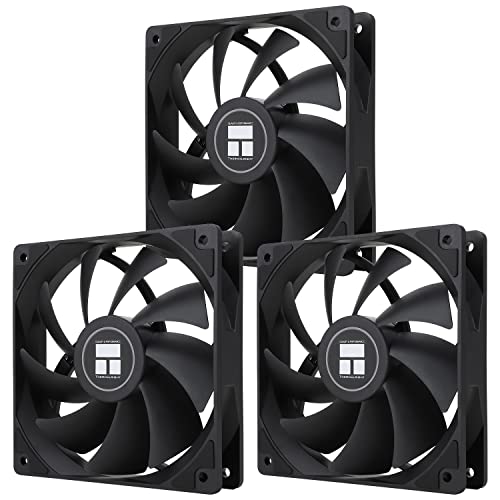
Thermalright TL-C12C X3 CPU Fan 120mm Case Cooler Fan, 4pin PWM Silent Computer with S-FDB Bearing Included, up to 1550RPM Cooling Fan(3 Quantities)
Chosen because it specifies 4pin PWM Silent Computer with S-FDB Bearing Included and up to 1550RPM Cooling Fan(3 Quantities).
View on Amazon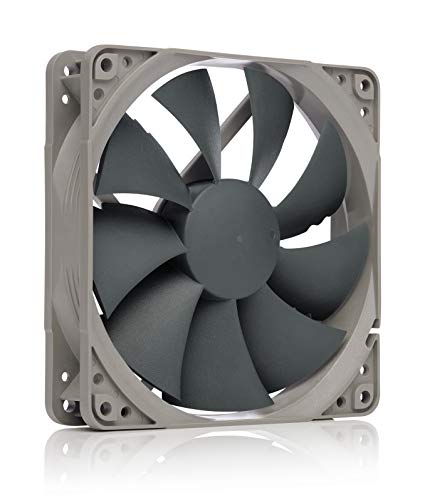
Noctua NF-P12 redux-1700 PWM, Quiet Fan 120mm | High Airflow, Low Noise, 25mm Thick Fan for PC and Electronics Cooling Streamlined Package 1700rpm 4-Pin PWM
Chosen because it specifies Quiet Fan 120mm and High Airflow.
View on Amazon
UTLGAMENG 7 Pack 120mm ARGB PC Fans, 4 Forward+3 Reverse, PWM, 28 LED Black | 4 Forward & 3 Reverse Fans for PC Case, 4Pin PWM, 1550 RPM, 28 ARGB LED, Infinity Mirror Lighting, Ideal for Gaming & Cooling
Chosen because it specifies 4 Forward+3 Reverse and PWM.
View on Amazon- Dust and clogged filters. Restricted airflow forces fans to speed up.
- Heavy background activity. High CPU or GPU use from updates, launchers or stuck processes keeps the fans spinning.
- Aggressive default fan curves. Some systems ramp fans quickly for short load spikes.
- Poor case airflow. Cables in the way, blocked vents or a case pushed into a corner trap heat.
- Cooler problems. A loose or aging CPU cooler, or dried-out thermal paste, raises temperatures.
- A failing fan. Worn bearings can cause rattling, grinding or clicking.
- Vibration. Loose panels, drive mounts or a case on a hard surface can amplify noise.
Step-by-Step Fixes, Easiest to Hardest
- Identify which fan is loud. Listen from the front, top, rear and GPU area. A steady whoosh is airflow, a rattle is usually vibration or a loose cable touching a blade, and a grinding or clicking noise suggests a worn bearing.
- Check temperatures and load. Open Task Manager and a temperature monitoring tool. If the CPU is at high usage while idle, close the offending app or run updates to completion. If temperatures are normal and fans are still loud, the fan curve is probably the cause.
- Improve placement. Keep the PC off carpet, away from walls and out of enclosed desk cabinets. Leave several centimeters of clearance around intake and exhaust vents.
- Clean the outside and filters. With the PC off and unplugged, remove and wash removable dust filters if the case has them, let them dry fully, and use compressed air on vents and fan grilles, holding fan blades still so they do not overspin.
- Use the maker’s software. Many prebuilt brands include a control utility with performance, balanced or quiet profiles. Choose a quieter profile and see whether noise drops without temperatures rising too far. The name and location of these options vary by maker, so check the support pages for your model.
- Update BIOS and drivers. Makers sometimes release BIOS updates that adjust fan behavior. Follow the maker’s instructions exactly and never interrupt an update.
- Adjust the fan curve in the BIOS. Some boards offer a fan control menu, often called Smart Fan, Q-Fan or similar, though the name varies by maker. Many prebuilt boards lock this down. If yours allows it, flatten the curve slightly so fans do not jump to full speed for brief spikes, and keep a safe margin on temperature.
- Reduce heat at the source. Lower the graphics settings or cap the frame rate in games so the GPU works less. A frame cap often cuts both noise and power with little visible loss on a standard display.
- Look inside if the warranty allows. Unplug the PC, open the side panel and look for cables near fan blades, loose screws and heavy dust on the heatsinks. Gently clean with compressed air outdoors or away from the PC.
- Replace a failing fan. If one fan is clearly grinding or rattling, ask the maker whether a replacement is covered. If you replace it yourself, match the connector type and size, such as 3-pin or 4-pin PWM, and the mounting dimensions.
- Consider re-pasting or a better cooler. If the CPU runs hot even with clean airflow, an aging cooler contact may be the issue. This is a job for a technician or the maker if the system is under warranty.
Quick-Reference Table
| Symptom | Likely cause | Fix |
|---|---|---|
| Constant loud whoosh even at idle | Background load or aggressive fan curve | Close apps, choose a quiet profile, adjust the curve |
| Fans ramp up and down every few seconds | Fast fan response to short load spikes | Smooth the curve in BIOS or maker software if available |
| Rattling or buzzing | Loose panel, cable touching blades or vibration | Reseat panels, reroute cables, use a stable surface |
| Grinding or clicking | Worn fan bearing | Contact the maker or replace the fan |
| Loud only during games | Normal GPU or CPU heat | Cap frame rate, lower settings, improve airflow |
| Loud and hot to the touch | Dust, poor airflow or cooler problem | Clean, reposition, then seek service |
| High noise from the PSU area | PSU fan or heat | Do not open it; contact the maker |
When to Stop and Contact the Maker
Stop and contact the maker or a technician if the PC is under warranty, if a fan makes grinding or scraping noises, if you smell burning, if temperatures stay near their limits after cleaning, or if the PSU fan is the noisy part. Never open the power supply. Also avoid forcing proprietary parts or stripping screws, since prebuilt cases and coolers can have unusual mounting.
Prevention Tips
- Clean filters and vents every few months, or more often with pets or carpet.
- Keep the case in an open area with clearance for intake and exhaust.
- Keep Windows, BIOS and the maker’s utilities up to date.
- Use frame caps and sensible graphics settings to lower heat in long sessions.
- Replace failing fans early, before they cause heat problems.
Frequently Asked Questions
Are loud fans a sign my prebuilt is broken?
Not necessarily. Fans naturally speed up under load, and many prebuilts use compact cooling that is louder than custom builds. Grinding, clicking or constant maximum speed at idle suggests a problem worth investigating.
Can I replace the fans in a prebuilt?
Often yes, but it depends on the model. Some prebuilts use standard fan sizes and connectors, while others use proprietary ones. Check the maker’s support pages and the warranty terms before making changes.
Will cleaning really make it quieter?
Dust restricts airflow and raises temperatures, which pushes fans faster. Cleaning filters and vents commonly reduces noise, though results vary by system.
Is it safe to lower fan speeds?
It is safe if temperatures stay within the limits the CPU and GPU makers list. Make small changes, watch temperatures under load, and revert if they climb too close to the limit.
Should I add more case fans?
Extra fans can lower temperatures and let existing fans spin slower, but only if the case has mounting points and the motherboard has headers available. Check the case and board manuals first.