Key takeaways
- Layout: Determines how much desk space you need and how steep the learning curve is. Full-size (100%) is familiar, Tenkeyless (TKL, 80%) drops the number pad, and 65%/60% compacts everything further.
- Switch feel: Determines fatigue and noise. Membrane and scissor switches are soft and quiet, linear mechanical switches are smooth and light, tactile switches have a small bump, and clicky switches are loud and sharp.
- Connectivity: Wired is plug-and-play with no charging, Bluetooth handles tablets and laptops, and 2.4GHz dongles give lower latency for gaming.
- Software simplicity: Beginner-friendly keyboards work fully without installing drivers. Extra software should be optional, not required to change brightness or media keys.
- Value: Focus on build quality that survives daily use, not on enthusiast features like hot-swap PCBs, QMK/VIA programming, or PBT keycap sets.
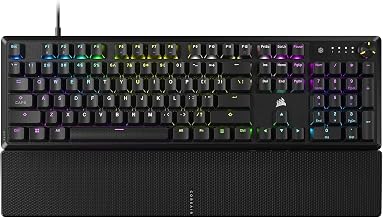
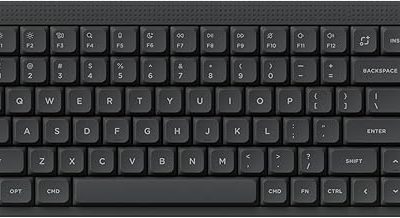
The best keyboards for beginners are compact, quiet membrane or light linear mechanical models with simple wired or Bluetooth connectivity and minimal software, such as the Logitech MK270, Keychron C3 Pro, Keychron K2, and Corsair K55 CORE, because they reduce typing errors, require no complex setup, and keep costs low while you learn.
How to Choose Your First Keyboard: 5 Decision Criteria
First-time buyers should prioritize forgiveness and simplicity over advanced features. A good beginner keyboard should let you type, learn shortcuts, and game casually without forcing you to learn software, lubricate switches, or memorize a new layout.
- Layout: Determines how much desk space you need and how steep the learning curve is. Full-size (100%) is familiar, Tenkeyless (TKL, 80%) drops the number pad, and 65%/60% compacts everything further.
- Switch feel: Determines fatigue and noise. Membrane and scissor switches are soft and quiet, linear mechanical switches are smooth and light, tactile switches have a small bump, and clicky switches are loud and sharp.
- Connectivity: Wired is plug-and-play with no charging, Bluetooth handles tablets and laptops, and 2.4GHz dongles give lower latency for gaming.
- Software simplicity: Beginner-friendly keyboards work fully without installing drivers. Extra software should be optional, not required to change brightness or media keys.
- Value: Focus on build quality that survives daily use, not on enthusiast features like hot-swap PCBs, QMK/VIA programming, or PBT keycap sets.
Layout Comparison: What Beginners Actually Struggle With
Most beginners assume bigger is better, but the layout affects posture and mouse space more than key count.
Full-Size (100%) – Best if you do numbers work
Has the number pad, function row, and navigation cluster. Familiar from school and office. Downside is width – usually 440mm+, which pushes your mouse hand far to the right and can cause shoulder strain on small desks.
Tenkeyless (TKL, 80%) – Best all-rounder for beginners
Removes the number pad but keeps function keys and arrows. About 80mm narrower than full-size, which brings the mouse closer and is easier to position. You still have dedicated keys for Delete, Page Up/Down, and F-keys for games.
Compact 65% / 60% / 75% – Best for small desks
Models like the RK61 (60%) or Keychron K2 (75%) save even more space but combine or remove keys. You access F-keys and navigation via Fn layers. The learning curve is steeper for the first two weeks because you must remember combinations for keys like `~`, `Print Screen`, or `Home`.
Recommendation: If you have never used a compact keyboard before, start with TKL or 75%. You get space savings without having to relearn arrow keys and function keys.
Switch Feel and Learning Curve
Switch type is the biggest factor in how quickly you type accurately and how tired your fingers feel.
- Membrane / Scissor (Logitech MK270, Logitech K380, Corsair K55 CORE): Soft, cushioned bottom-out, very quiet. Low actuation force of 55-65g. Very forgiving for heavy typists because the rubber dome absorbs mistypes. No noise complaints in shared rooms or dorms.
- Linear Mechanical Red-style (Keychron C3 Pro with Red, Keychron K2 Red): Smooth press from top to bottom, light ~45g force, quiet without a click. Easy to press repeatedly for gaming, but beginners with heavy hands may get accidental key presses until they lighten their touch.
- Tactile Brown-style: Small bump mid-press to tell you the key registered, still not loud. Helpful for learning not to bottom out hard. Slightly more fatigue than linear but better accuracy feedback.
- Clicky Blue-style: Loud click and sharp bump. Avoid as a first keyboard if you work near others or use a microphone, as the noise is hard to dampen.
For the easiest transition from a laptop, choose membrane/scissor or linear red. If you want to learn proper mechanical typing form, tactile brown gives the most feedback without the noise penalty of clicky switches.
Connectivity and Software Simplicity
Beginners benefit most from keyboards that work immediately after plugging in or pairing, with no mandatory software.
- Wired USB: Zero charging, zero pairing, lowest latency. Ideal if the keyboard stays at one desk. Cable length is usually 1.5 to 1.8 meters.
- Bluetooth 5.0 / 5.1: Pairs with laptops, tablets, and phones, can switch between 2-3 devices with a keypress (common on Keychron K2 and Logitech K380). Slightly higher latency (15-30ms) and requires charging every few weeks to months.
- 2.4GHz Wireless Dongle: Included with many Logitech and Corsair wireless models. Lower latency than Bluetooth (around 5-12ms) and more stable for light gaming. Occupies one USB-A port.
Software note: Keyboards like the Logitech MK270 and K380 need no software at all. Gaming-oriented models like the Corsair K55 CORE or Logitech G213 offer optional software for lighting and macros, but all basic functions work without it. For a first keyboard, avoid any model that requires software just to enable media keys or F-row functions.
Beginner-Friendly Picks Compared
These classes cover the most common first-time buyer situations without enthusiast complications.
| Model Class | Layout | Switch Type | Connectivity | Battery / Power | Typical Market Range |
|---|---|---|---|---|---|
| Logitech MK270 (membrane combo) | Full-size 100% | Membrane, low profile, ~60g | 2.4GHz dongle + wired mouse | 2x AAA, typically 12-24 months | usually $20-$35 |
| Logitech K380 | Compact 75% without F-row separation | Scissor, quiet, ~55g | Bluetooth 5.0, 3-device switch | 2x AAA, typically 18-24 months | usually $30-$45 |
| Corsair K55 CORE / Logitech G213 | Full-size 100% with media keys | Membrane with tactile dome | Wired USB 2.0 | Bus-powered, ~150mA draw | usually $40-$65 |
| Keychron C3 Pro | TKL 80% | Mechanical QMK, Red/Brown/Blue option | Wired USB-C | Bus-powered, ~180-220mA with backlight | usually $35-$55 |
| Keychron K2 | 75% compact | Mechanical Gateron Red/Brown/Blue | Bluetooth 5.1 + 2.4GHz + Wired | 4000mAh rechargeable, see calc below | usually $75-$95 |
| Royal Kludge RK61 | 60% compact | Mechanical Red/Blue/Brown | Bluetooth 5.0 + 2.4GHz + Wired | 1450mAh rechargeable | usually $45-$60 |
Decision Matrix: Match Your Situation to the Right Type
Use this matrix instead of comparing specs in isolation. Find your primary use case in the left column and follow the row.
| If You Are… | Pick This Layout + Switch | Why It Works |
|---|---|---|
| Student on a small desk / dorm room, mostly typing and browsing | TKL or 75% membrane/scissor (K380, C3 Pro on Red) | Quiet, saves 80-120mm of desk width, no software needed |
| First-time PC gamer on a budget | Full-size or TKL wired membrane (K55 CORE, G213) | Dedicated media controls and F-keys, no battery anxiety, spill-resistant designs |
| Learning to touch-type and want to try mechanical | 75% or TKL tactile Brown (Keychron K2/C3 Pro Brown) | Bump teaches actuation point, helps prevent bottoming out hard |
| Switch between laptop, tablet, and desktop | Bluetooth multi-device (K380 or Keychron K2) | One keyboard pairs to 3 devices, switch with Fn + 1/2/3 |
| Need number pad for spreadsheets/data entry | Full-size membrane (MK270) | Full numpad with zero learning curve, long battery life |
Battery Runtime: A Worked Calculation Beginners Should See
Wireless battery life is often listed as “up to 240 hours” but that number assumes backlight off. Here is how backlight changes real runtime, using the Keychron K2 as an example with its 4000mAh lithium battery.
Assume mixed use: 6 hours active typing/gaming per day, rest in sleep. Sleep draw is negligible (~0.5mA). Active draw varies by backlight setting:
- Backlight off: ~30mA average
- Low white backlight: ~120mA average
- Full RGB brightness: ~280mA average
Calculation: Runtime hours = Battery capacity / Average draw. Then divide by 6 hours per day for days of use.
- Backlight off: 4000mAh / 30mA = 133.3 hours, /6 = ~22 days of use, or 4-5 months at lighter 2 hours/day use.
- Low backlight: 4000 / 120 = 33.3 hours, /6 = ~5.5 days
- Full RGB: 4000 / 280 = 14.3 hours, /6 = ~2.4 days
This is why beginners who leave RGB on full often think a battery is defective when it dies after a weekend. If you choose wireless, start with backlight off or low and turn it up only when needed. Wired models like the C3 Pro or K55 CORE avoid this entirely because they draw 150-220mA directly from USB and never need charging.
Value and What Not to Pay for Yet
For a first keyboard, value means durability and comfort, not customization. Features you can safely skip until your second keyboard include hot-swappable switches, custom keycap profiles, south-facing LEDs, gasket mounts, and advanced macro programming. Those add usually $30-$70 to the price and require tools and time to tune.
Instead, spend within these general market ranges: basic membrane or scissor usually $20-$45, entry wired mechanical usually $35-$65, and quality Bluetooth mechanical usually $70-$95. Above that, you are paying for enthusiast build or wireless tri-mode convenience that is not needed to learn proper typing and shortcuts. Look for spill resistance, adjustable feet with 4-8 degree incline, and doubleshot or UV-coated legends that will not fade in six months, all of which matter more for daily learning than switch brand.
Simple Setup Tips for Your First Week
- Set keyboard feet to the lower incline first. A flatter angle reduces wrist extension while you build finger strength.
- Turn off clicky key sounds in software if present, and set backlight to static low white. This reduces distraction and saves battery.
- Learn three shortcuts immediately: Alt + Tab (app switch), Ctrl + Z / Ctrl + Shift + Z (undo/redo), and Win + V (clipboard history on Windows) or Cmd + Space (Spotlight on Mac). These give more speed gains than any switch upgrade.
- If you choose a 60% or 75% board, print the Fn layer map and keep it near your monitor for the first week to avoid frustration.
FAQ
Is a mechanical keyboard too hard for beginners?
No, but choose light linear or tactile. Heavy switches above 65g or clicky switches increase fatigue and noise. A 45g linear or tactile Brown is as easy to press as most membrane boards and gives clearer feedback for learning.
Do I need a wrist rest?
Not required at first. If your desk is higher than your elbows, a low-profile foam rest can help keep wrists neutral. Many beginner boards like the G213 and K55 CORE include a detachable rest so you can test without buying separately.
Wired or wireless for a first keyboard?
Wired is simpler because you never charge or pair. Choose wireless only if you need to switch between devices or want a cleaner desk and are comfortable charging every 1-4 weeks depending on backlight use.
What size should I get if I have never used a compact keyboard?
Start with TKL or 75%. You keep arrow keys and the F-row where you expect them. Move to 60% later only if you specifically want maximum mouse space and are willing to learn Fn layers for missing keys.