Key takeaways
- To reduce lag when gaming on your phone, first work out whether the problem is the network or the device: switch to a strong Wi-Fi or stable cellular.
To reduce lag when gaming on your phone, first work out whether the problem is the network or the device: switch to a strong Wi-Fi or stable cellular signal, close background apps, free up storage, and keep the phone cool. If the game still stutters after those steps, lower the in-game graphics settings and check for system and game updates.
Mobile lag comes in two flavors that feel similar but have different fixes. Network lag shows up as delayed actions, rubber-banding and disconnects, while device lag shows up as low frame rates, stuttering and sudden slowdowns. This guide helps you diagnose which one you have and walks through practical fixes you can apply in 2026, without any special tools.
Diagnose the Type of Lag
Open the game and watch what happens. If character movement looks smooth but your actions register late, or other players seem to teleport, the network is the likely culprit. If the picture itself stutters, drops frames or the phone becomes hot, the device is struggling. Many games show a ping or latency number in settings, and a high or jumpy number points to the connection.
| Symptom | Likely cause | First fix to try |
|---|---|---|
| Delayed taps, rubber-banding | Weak or congested network | Move closer to the router or switch networks |
| Frame drops, stutter | Device overloaded or hot | Close apps and lower graphics |
| Freezes when loading | Low storage or slow memory | Free up space |
| Phone gets hot, slows over time | Thermal throttling | Remove case, add cooling, take breaks |
| Random disconnects | Unstable signal or power-saving mode | Disable battery saver and check signal |
Fix Network Lag
Choose the Right Connection
A strong Wi-Fi connection is usually more stable than mobile data, but only if you are near the router. Use the five gigahertz band if your router offers it, since it is usually less crowded than the two point four band, though it has shorter range. If Wi-Fi is weak, a good cellular signal may be more consistent than a poor wireless one.
Reduce Competition on Your Network
Streaming video, downloads and cloud backups on other devices can raise latency for your game. Pause large downloads and ask others to hold off during competitive matches. If your router supports quality-of-service settings, prioritize your phone or the game traffic.
Reboot and Reposition
Restart the router and phone, and move away from walls, microwaves and other sources of interference. Even small changes in position can improve signal. A newer router or a mesh system can help in large homes.
Check Game Servers
Some lag is on the server side. Try a different region if the game allows it, or check the game’s status page and community posts for known issues. Playing at off-peak times can also help.
Fix Device Lag
Free Memory and Storage
Close apps running in the background and clear the recent apps list. Keep some free storage, since a nearly full phone struggles with temporary files. Delete unused apps and large media, or move them to cloud storage.
Lower Graphics Settings
Reduce resolution, shadows and effects, or cap the frame rate at a level the phone can sustain. A steady, lower frame rate often feels smoother than a high but fluctuating one. Many games have a performance mode designed for older devices.
Manage Heat
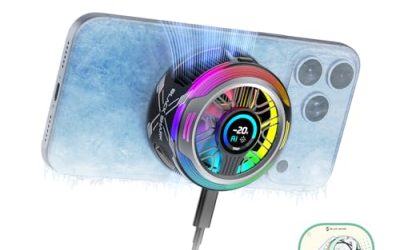
Phones slow down when they get hot to protect the hardware. Remove thick cases during long sessions, avoid playing while charging at high speed in warm rooms, and take breaks. Accessories such as clip-on cooling fans may help some players, though results depend on the phone and environment.
Update and Restart
Install system and game updates, which often include performance fixes, and restart the phone before a long session. If a game lags after an update, check community feedback for known problems and wait for a patch.
Settings and Habits That Help
- Turn off battery saver while gaming, since it can limit performance.
- Enable any built-in game mode that prioritizes performance and blocks notifications.
- Disable automatic updates and cloud syncing while you play.
- Use wired or quality wireless earbuds to avoid Bluetooth delays in rhythm and shooter games.
- Keep the screen brightness at a moderate level to reduce heat.
Before You Start Checklist
- Note whether lag affects actions or visuals.
- Check your connection speed and ping in the game.
- Close background apps and clear storage.
- Install the latest updates.
- Lower graphics and cap the frame rate if needed.
- Let the phone cool before long sessions.
Controller Input, Touch Response and Audio Delay
Not all delay comes from the game or network. Screen protectors that are thick or dirty can make touch response feel less sharp, and a cracked screen may register touches unevenly. Clean the screen and consider a thin protector with a smooth finish. If your phone has a touch sampling or game mode setting, try enabling it and see whether response feels better.
Bluetooth audio introduces its own delay, which hurts rhythm games and shooters where sound cues matter. Wired headphones or a low-latency wireless option reduce that gap. If you use a phone controller or clip-on triggers, check that they connect reliably and that the game recognizes them, since a weak connection can cause missed inputs that feel like lag.
When the Phone Is the Limit
Older or entry-level phones may simply lack the processing power for demanding games. If you have tried every setting and the game is still unplayable, check the game’s published device requirements and consider a lighter title or a phone with a stronger processor and better cooling. Look for listed refresh rate, processor tier and memory when comparing models, and remember that sustained performance depends on cooling design, not only on peak speed.
Battery health plays a part too. An aging battery can cause the system to limit performance to avoid unexpected shutdowns. If your phone slows down at the same battery percentage every time, a battery replacement from a qualified service provider may restore some performance.
Network Checks You Can Do at Home
Run a simple speed and latency test at different times of day and in different rooms, and note the results. If the results vary widely, interference or router placement is likely the cause. Try changing the router channel, and keep the router off the floor and away from metal objects. If you share the connection with many devices, consider a router that supports modern standards and handles multiple devices smoothly.
Common Mistakes
Maxing out graphics on an older phone is the most common cause of stutter. Others include playing while the phone is hot and charging, ignoring network congestion at home, and relying on a distant Wi-Fi signal. Some players install several so-called booster apps, which often add background load instead of removing it. Stick to built-in tools and simple habits.
Build a Pre-Game Routine
Consistency helps more than any single trick. Before a long session, restart the phone, connect to your best network, clear recent apps, turn on any game or do-not-disturb mode, and check that the battery is reasonably charged and the phone is not already warm. Keep your phone in a cool, shaded spot and avoid placing it on soft surfaces such as bedding that trap heat. Small habits like these make lag less frequent and easier to diagnose when it does appear.
Related guides
- Gaming Headset Noise Isolation Vs Active Noise Cancellation
- Does Gaming Headset Noise Cancellation Work On Microphone
- Trackir Vs Vr Vs Webcam Head Tracking For Flight Sims
Frequently Asked Questions
Does a faster internet plan fix lag?
Not necessarily. Games need low latency and stability more than high download speeds. A strong, uncongested connection matters more than raw bandwidth.
Is Wi-Fi or mobile data better for gaming?
Whichever is more stable at your location. Wi-Fi near a router is usually better, but a strong cellular signal can beat a weak wireless one.
Do gaming phones lag less?
They often have better cooling and faster processors, so they sustain performance longer, but network lag affects every phone the same way.
Do game booster apps work?
Their benefits are usually small, and some add background activity. Built-in game modes and manual cleanup are safer choices.
FAQ
Does a faster internet plan fix lag?
Is Wi-Fi or mobile data better for gaming?
Do gaming phones lag less?
Do game booster apps work?
More from Amazon
Programs that pair well with the guide above. Offers and eligibility are set by Amazon and may change.
Free shipping on eligible items, Prime Video and more. Eligible new members can start with a free trial.
Start a Prime free trialAd-free music streaming. Eligible new subscribers can start with a free trial.
Try Music Unlimited freeA Prime membership for ages 18-24 with a trial period. Eligibility is set by Amazon.
See Prime for Young AdultsAudiobooks and podcasts to listen to on the go. Eligible new members can start with a free trial.
Try Audible freeAs an Amazon Associate we earn from qualifying purchases.