Key takeaways
- JEDEC Standards: These are the basic, universally compatible settings your RAM defaults to. While safe, they are deliberately conservative, ensuring compatibility across a vast range of motherboards and CPUs. For DDR5, JEDEC speeds might hover around 4800MHz or 5200MHz.
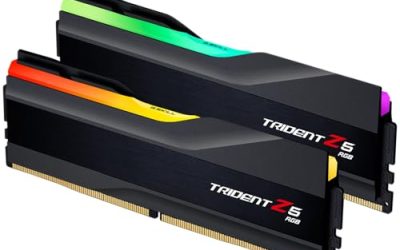
- XMP Profiles (Intel): Developed by Intel, XMP is designed for Intel platforms. When you purchase RAM like the G.SKILL Trident Z5 Neo RGB Series DDR5 RAM, it comes with one or more XMP profiles that push it well beyond JEDEC. For instance, a kit rated for 6000MT/s might run at a much slower speed by default.
- EXPO Profiles (AMD): AMD’s answer to XMP is EXPO. Similar in function, EXPO profiles are optimized for AMD Ryzen processors. If you’re building an AMD system with RAM like the G.SKILL Trident Z5 Neo RGB Series DDR5 RAM (AMD EXPO), you’ll be looking for EXPO-certified modules.
What's inside
You’ve likely invested a significant sum in your gaming rig, from a top-tier GPU to a lightning-fast CPU. But one component often overlooked for its performance potential is your RAM. While your memory might be technically functional out of the box, it’s rarely running at its advertised speeds. This is where XMP and EXPO profiles come into play, offering a simple yet impactful way to unlock your RAM’s full potential and boost your gaming performance.
In 2026, with DDR5 RAM becoming increasingly prevalent, understanding and enabling these profiles is more crucial than ever. This guide will walk you through what XMP and EXPO are, why they matter for gamers, and how to enable them on your system for tangible speed improvements.
As an Amazon Associate we earn from qualifying purchases at no extra cost to you.


⚡ Save on Your Next PC — Amazon Prime
Prime members get fast free shipping on the systems above, plus early access to Prime Day & Black Friday PC deals. New members get a 30-day free trial.
Watch: How to Enable XMP / EXPO for Faster RAM — Video Review
What Are XMP and EXPO?
XMP (Extreme Memory Profile) and EXPO (Extended Profiles for Overclocking) are essentially pre-configured overclocking settings stored directly on your RAM modules. Manufacturers meticulously test these profiles to ensure stability and optimal performance at specific speeds, timings, and voltages, often significantly higher than the default JEDEC (Joint Electron Device Engineering Council) standards.
- JEDEC Standards: These are the basic, universally compatible settings your RAM defaults to. While safe, they are deliberately conservative, ensuring compatibility across a vast range of motherboards and CPUs. For DDR5, JEDEC speeds might hover around 4800MHz or 5200MHz.
- XMP Profiles (Intel): Developed by Intel, XMP is designed for Intel platforms. When you purchase RAM like the G.SKILL Trident Z5 Neo RGB Series DDR5 RAM, it comes with one or more XMP profiles that push it well beyond JEDEC. For instance, a kit rated for 6000MT/s might run at a much slower speed by default.
- EXPO Profiles (AMD): AMD’s answer to XMP is EXPO. Similar in function, EXPO profiles are optimized for AMD Ryzen processors. If you’re building an AMD system with RAM like the G.SKILL Trident Z5 Neo RGB Series DDR5 RAM (AMD EXPO), you’ll be looking for EXPO-certified modules.
Why Enable XMP/EXPO for Gaming?
The impact of enabling XMP or EXPO on gaming performance can be surprisingly significant, especially in CPU-bound scenarios. Higher RAM speeds and tighter timings allow your CPU to access data much faster, reducing bottlenecks and leading to:
- Higher Average Framerates: Your CPU can feed your GPU instructions more efficiently, leading to a smoother, more consistent gaming experience.
- Improved Minimum Framerates (1% Lows): This is often the most noticeable improvement. Reducing stuttering and those jarring dips in frame rate makes gameplay feel significantly more fluid.
- Faster Loading Times: While not as dramatic as other improvements, faster RAM can contribute to quicker game and level loading.
- Better Performance in RAM-Intensive Games: Titles that utilize large textures or complex simulations will particularly benefit from the increased memory bandwidth and reduced latency.
For example, a kit like the Corsair Vengeance RGB RS DDR5 16GB (2 x 8GB) Up to 6000MHz might default to 4800MHz. Enabling its XMP/EXPO profile to reach the advertised 6000MHz can yield a noticeable boost in frames per second, particularly in competitive titles where every millisecond counts.
How to Enable XMP/EXPO in Your BIOS
Enabling these profiles is a straightforward process performed within your motherboard’s BIOS (Basic Input/Output System) or UEFI (Unified Extensible Firmware Interface). The exact steps may vary slightly depending on your motherboard manufacturer, but the general principle remains the same.
- Restart Your Computer: Power down your PC and then turn it back on.
- Enter BIOS/UEFI: As your computer boots, repeatedly press the designated key to enter the BIOS. This key is typically one of the following: `DEL`, `F2`, `F10`, `F12`, or `ESC`. Your motherboard’s boot screen will usually display which key to press.
- Locate Memory Settings: Once in the BIOS, navigate through the menus to find the memory or overclocking settings. This is often under sections labeled “Advanced,” “Ai Tweaker,” “OC,” or “Memory.”
- Find XMP/EXPO Option: Look for an option that says “XMP,” “EXPO,” “DOCP” (for some ASUS boards), or “Memory Profile.”
- Select Your Profile: You’ll usually have an option to disable the profile or select from available profiles. Choose the highest numbered profile (e.g., “Profile 1”) which corresponds to the advertised speed of your RAM, such as the 6000MT/s for the CORSAIR Vengeance DDR5 32GB (2 x 16GB) Up to 6000MHz.
- Save and Exit: Navigate to the “Save & Exit” tab, select “Save Changes and Exit,” and confirm your selection. Your computer will restart.
Upon rebooting into Windows, you can verify that the RAM is running at its intended speed using system monitoring tools like CPU-Z or Task Manager. If you encounter any instability after enabling the profile, consider trying a lower profile if available, or checking your motherboard’s Qualified Vendor List (QVL) for RAM compatibility.
Troubleshooting and Important Considerations
While enabling XMP/EXPO is generally safe, a few things to keep in mind can prevent headaches:
- Motherboard Compatibility: Ensure your motherboard supports the speeds your RAM is rated for. Check your motherboard’s specifications or QVL.
- CPU Memory Controller: Older or lower-end CPUs might struggle to reliably run very high RAM speeds.
- BIOS Updates: Keeping your motherboard’s BIOS up-to-date is always a good practice, as updates can improve memory compatibility and stability.
- Stability Testing: After enabling XMP/EXPO, it’s wise to run memory stress tests (e.g., MemTest86+, Prime95’s blend test) to ensure your system is stable under load.
Tips for Optimal RAM Performance
- Purchase RAM in Kits: Always buy RAM in matched kits (e.g., 2x8GB, 2x16GB, 2x32GB) as they are tested to work together.
- Dual Channel is Key: For optimal performance, ensure your RAM is installed in the correct slots for dual-channel operation (refer to your motherboard manual).
- Consider Latency (CL): While speed (MT/s) is important, lower CAS Latency (CL) numbers, like CL30 for the G.SKILL Trident Z5 Neo RGB Series DDR5 RAM, also contribute significantly to overall performance.
- Check Your QVL: For maximum assurance, verify that your specific RAM kit is on your motherboard manufacturer’s Qualified Vendor List.
Frequently Asked Questions
What’s the difference between XMP and EXPO?
XMP is Intel’s standard, while EXPO is AMD’s. They serve the same purpose – enabling pre-configured performance profiles – but are optimized for their respective CPU architectures.
Will enabling XMP/EXPO void my RAM warranty?
Generally, no. RAM manufacturers include these profiles as intended features. However, attempting manual overclocking beyond these profiles might have different warranty implications.
Can I enable XMP and EXPO at the same time?
No, you can only enable one profile type at a time. Your motherboard will detect whether it’s an Intel (XMP) or AMD (EXPO) system and offer the appropriate option.
What if my PC doesn’t boot after enabling XMP/EXPO?
This usually indicates a stability issue. Clear your CMOS (refer to your motherboard manual for instructions), re-enter BIOS, and try again. If the problem persists, you may need to check compatibility or consider running at a slightly lower speed if your RAM offers multiple profiles.
Conclusion
Enabling XMP or EXPO is one of the easiest and most effective ways to squeeze extra performance out of your gaming PC in 2026. It’s a simple tweak in your BIOS that translates directly into smoother gameplay, higher framerates, and a more responsive gaming experience. Don’t leave performance on the table – take a few minutes to unlock the true potential of your RAM.