Key takeaways
- Verify the outlet: plug in a lamp or phone charger to confirm the socket is live.
- Check the PSU switch: the rear toggle must be on the “I” side.
- Bypass power strips: connect straight to the wall to rule out a bad strip.
- Inspect the cable: a loose or damaged IEC cord is a surprisingly common culprit.
What's inside
Few moments are more stressful than pressing your gaming PC’s power button and getting nothing: no fans, no lights, no beep. The good news is that a dead-on-arrival PC is usually caused by one of a handful of common issues, and most of them you can diagnose and fix at home without special tools. Working through them in the right order saves time and panic.
This 2026 troubleshooting guide walks you through the fixes step by step, from the simplest power checks to reseating components. If you built the machine yourself, keeping a reference like How to Build a Gaming PC for Beginners nearby helps, but the steps below apply to any desktop that refuses to boot.
As an Amazon Associate we earn from qualifying purchases at no extra cost to you.




⚡ Save on Your Next PC — Amazon Prime
Prime members get fast free shipping on the systems above, plus early access to Prime Day & Black Friday PC deals. New members get a 30-day free trial.
Watch: Why Won’t My Gaming PC Turn On? (2026 Fixes) — Video Review
Start With the Power Basics
Before opening the case, rule out the simple stuff. Confirm the wall outlet works by testing another device, then check that the power supply’s rear switch is flipped to “on” (the “I” position, not “O”). Reseat both ends of the power cable, and if you use a surge protector or power strip, plug the PC directly into the wall to eliminate a failed strip.
- Verify the outlet: plug in a lamp or phone charger to confirm the socket is live.
- Check the PSU switch: the rear toggle must be on the “I” side.
- Bypass power strips: connect straight to the wall to rule out a bad strip.
- Inspect the cable: a loose or damaged IEC cord is a surprisingly common culprit.
Check the Internal Power Connections
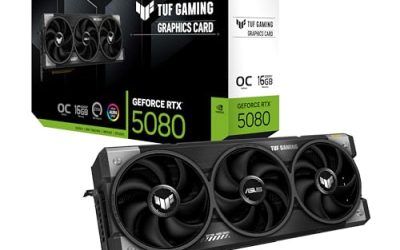
If external power checks out, open the side panel. The two most-forgotten connections are the 24-pin motherboard cable and the CPU power cable (the 8-pin near the top of the board). Press both firmly until they click. On modern GPUs, confirm the PCIe power connectors are fully seated as well, since a partially connected 12VHPWR plug can prevent boot.
Also check the front-panel power switch header. The tiny two-pin connector from the case’s power button plugs onto specific motherboard pins, and if it slipped off or is on the wrong pins, the button does nothing. Your motherboard manual shows the exact location.
Reseat RAM and the Graphics Card
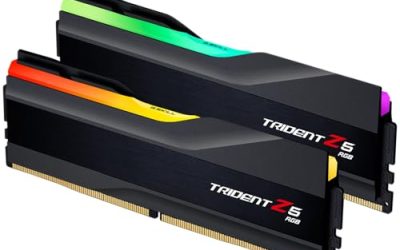
A stick of RAM that has wiggled loose is one of the top causes of a no-boot with fans but no display, and sometimes a no-post entirely. Remove each RAM stick, blow out the slot, and press it back until both clips snap. Try booting with a single stick in the primary slot to isolate a bad module. Do the same for the graphics card, reseating it firmly in the top PCIe slot.
- Reseat RAM one stick at a time to identify a failed module.
- Use the primary DIMM slot (usually the second from the CPU) when testing a single stick.
- Reseat the GPU and reconnect its power cables.
- Listen for beep codes if your board has a speaker, as they pinpoint RAM or GPU faults.
Clear the CMOS and Test the PSU
A corrupted BIOS setting can halt a boot. Clearing the CMOS resets the board to defaults: power off, unplug, and either move the CLR_CMOS jumper for a few seconds or pull the coin battery for a minute, then reboot. If the machine still shows zero signs of life, suspect the power supply. The paperclip jumper test (bridging the green and a black pin on the 24-pin) tells you if the PSU fan spins at all, indicating basic function.
Tips
- Work methodically: change one thing at a time so you know which fix worked.
- Photograph connections before unplugging so reassembly is foolproof.
- Keep a spare PSU or known-good part if you build often, to swap-test faults fast.
- Check for standoff shorts: a misplaced motherboard standoff can cause a dead board on new builds.
Frequently Asked Questions
My fans spin but there’s no display. What’s wrong?
That usually points to RAM or GPU, not power. Reseat both, test one RAM stick at a time, and confirm the monitor cable is in the graphics card, not the motherboard’s video output.
The PC is completely dead with no lights. Where do I start?
Start externally: outlet, PSU switch, and power cable. Then check the 24-pin and CPU power connectors and the front-panel power button header inside the case.
Could a dead CMOS battery stop my PC from turning on?
A dead coin battery rarely prevents boot entirely, but it can cause BIOS errors and failed startups. Clearing CMOS or replacing the battery is a cheap, quick thing to rule out.
How do I know if my power supply failed?
Try the paperclip jumper test to see if the PSU fan spins alone, or swap in a known-good unit. No response across every other check strongly suggests a failed PSU.
Conclusion
A gaming PC that won’t turn on feels catastrophic, but the cause is almost always one of a few fixable issues: external power, a loose internal cable, unseated RAM or GPU, or a corrupted BIOS. Work through the checks in order, change one variable at a time, and you’ll usually have the machine booting again without a trip to a repair shop. If you built it yourself, a good building reference makes each step even clearer, and the experience turns a scary dead PC into a routine troubleshooting exercise.