Our Top Picks
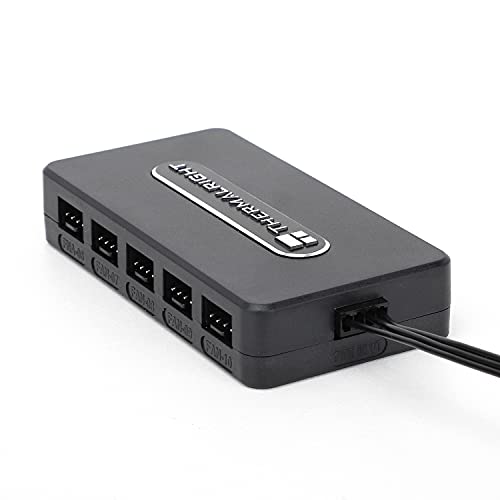 Thermalright Integrated Fan Hubfor case fan interface3.54 x 1.57 x 0.67 inches0.22 poundsCheck on Amazon
To set up a fan hub, mount the hub inside the case, plug its single PWM cable into a 4-pin fan header on the motherboard (usually CPU_FAN or a chassis fan header), connect its power input to a PC power supply lead (commonly SATA), then plug your fans into the hub’s 4-pin sockets. Do all of this with the PC switched off and the power supply unplugged from the wall.
What a fan hub does
A fan hub is a small board that lets one motherboard fan header control many fans. Motherboards often have only a handful of fan headers, so a hub fixes that shortage. Arctic’s case fan hub is one example: the maker lists ten 4-pin PWM outputs, power through a SATA connector with a current limit of up to 4.5 A, and about 1 A available per fan port. It connects to the motherboard through one 4-pin fan header, and the speed signal from that header is passed to all the connected fans. The hub also reads the speed of the fan in its first slot and reports it back to the board. Other makers, such as Corsair and NZXT, sell hubs and controllers with different connectors and software, so the exact layout varies by model.

Noctua NA-FH1, 8-Port PWM Fan Hub, Magnetic with Short Circuit Protection | Supports Up To Eight 12V and 5V Fans, SATA Power Input, Up To 54W Output, Toolless Magnetic Installation, Status LEDs
Chosen because it specifies 8-Port PWM Fan Hub and Magnetic with Short Circuit Protection.
View on AmazonThermalright Integrated Fan Hub, 10-Port 4 Pin PC Fan Controller, 12V Fan Hub, Support up to 10 Fans, SATA Power Cord Direct Input
Chosen because it specifies 10-Port 4 Pin PC Fan Controller and 12V Fan Hub.
View on Amazon
Thermalright Fan HUB Controller REV. A Fan Hub Support 10 Groups of Fans | 10-Port 4 Pin PC Fan Controller,12V Fan Hub,Strong Paste + Magnetic Suction,SATA Power Cord Direct Input
Chosen because it specifies 10-Port 4 Pin PC Fan Controller and 12V Fan Hub.
View on Amazon
PC Fan Hub, 4 Pin PWM Fan Hub 1 to 8 Splitter, with 4 Pin Header Cable | 8 Ports PWM Fan HUB
Chosen because it specifies 4 Pin PWM Fan Hub 1 to 8 Splitter and with 4 Pin Header Cable.
View on AmazonKnow which type you have
| Hub type | How it is controlled | Typical power source | Notes |
|---|---|---|---|
| Simple PWM splitter hub | Follows the motherboard header’s PWM signal | SATA or Molex lead | All fans share one speed curve |
| Hub with software control | Uses a USB header and the maker’s app | SATA lead plus a USB cable | Per-fan or per-group profiles |
| RGB and fan combo controller | Maker’s software or the motherboard RGB header | SATA lead | Follow the manual for fan and RGB ports |
| Passive 3-pin splitter | No separate power | The motherboard header | Easy to overload the header; avoid with many fans |
Read the manual for your hub. Port counts, connector types, current limits and software behaviour differ between brands.
Before you start
- Shut down the PC, switch off the power supply and unplug it from the wall.
- Touch bare metal on the case, or wear an anti-static wrist strap, before touching components.
- Check that your fans are 4-pin PWM models for full speed control. 3-pin fans work on many hubs but are usually controlled by voltage and the hub’s behaviour varies.
- Add up the fan current. Compare the total against the hub’s per-port and total limits stated in its manual.
- Confirm you have a free SATA power lead from the power supply and a 4-pin motherboard fan header.
Step-by-step setup
- Pick a mounting spot. Many hubs include adhesive pads, a magnet or a screw mount. Place it near the fans and the cable routing path, away from the CPU cooler and hot components. Make sure it will not touch moving parts or block airflow.
- Connect the PWM cable to the motherboard. The hub’s single 4-pin cable goes to a fan header. CPU_FAN suits systems where the hub mostly feeds radiator or cooler fans; a chassis header such as SYS_FAN or CHA_FAN works for case fans. The header name varies by board maker, so consult the motherboard manual.
- Connect hub power. Plug the SATA (or other power) connector on the hub into a lead from the power supply. Do not use a daisy-chained lead that already carries heavy loads, and follow the hub maker’s instructions on power connections.
- Plug in the fans. Push each fan’s 4-pin connector into a hub socket, with the notch aligned. Start with port one, since some hubs read the RPM only from the first port.
- Tidy the cables. Bundle slack with ties, keep wires away from blades, and leave room to close the side panel.
- Reconnect power and boot. Enter the BIOS or UEFI setup, usually by pressing a key such as Delete or F2 during startup (the key varies by maker), and check that the fan header shows RPM.
Set fan speed in the BIOS or software
With a simple PWM hub, the motherboard’s fan curve for the connected header controls every fan on the hub. Open the BIOS fan control page, often called Q-Fan, Smart Fan, or Fan Control, but the name varies by board maker. Choose PWM mode for the header if the board offers a choice, since a 4-pin fan on a hub should use PWM. Pick a profile such as Silent or Standard to begin with, then adjust the curve only in small steps. Aggressive or unusual settings can cause instability, so keep changes modest. Changing BIOS settings can also affect warranty terms with some makers, so follow the board manual.
For hubs with their own software, install the maker’s utility, update the hub firmware if the maker offers it, and create profiles per fan group. Software control commonly uses an internal USB header on the motherboard; plug the hub’s USB lead into one, as the manual indicates.
Which motherboard header should it use?
| Header | Good for | Watch out for |
|---|---|---|
| CPU_FAN | Hub on the cooler and radiator fans | Board expects a cooler fan here and may warn if no RPM is read |
| CPU_OPT | Second CPU-cooling hub | Not present on every board |
| SYS_FAN / CHA_FAN | Case intake and exhaust fans | Fan curve may follow motherboard temperature, not the CPU |
| AIO_PUMP / W_PUMP | Pumps, not fan hubs | Do not use for fans unless the manual says so |
Troubleshooting
| Symptom | Common cause | What to try |
|---|---|---|
| No fans spin | Hub has no power | Check the SATA connector and PSU lead; confirm the power supply switch is on |
| Fans spin at full speed constantly | PWM signal missing or header set to DC mode | Check the 4-pin cable seating; set the header to PWM |
| BIOS shows no fan detected | RPM wire not connected or first port empty | Put a fan in port one; reseat the cable |
| One fan does not spin | Loose connector or faulty fan | Try the fan in another port |
| Fan error at startup | No RPM signal on CPU_FAN | Use a different header or adjust the warning in BIOS |
| Clicking or buzzing | Cable touching a blade or overloaded hub | Power off and rearrange cables; re-check the current limits |
Common mistakes
- Powering the hub from the motherboard header only, so it lacks enough current.
- Ignoring the total current rating when connecting many high-power fans.
- Mixing fan types with very different speed ranges on one curve.
- Putting a pump on a fan hub that the pump maker says to connect directly.
- Leaving the first port empty on a hub that reads RPM from it.
- Working inside the case with the power supply still plugged in.
Frequently Asked Questions
Do I need a fan hub?
Only if you have more fans than motherboard headers, or want to control several fans as one group. A case with a few fans and enough headers can skip it. A hub tidies wiring when a build has many fans.
Can I connect a fan hub to a case fan header?
Yes, the hub’s PWM cable can go to a CPU or chassis fan header with 4 pins. Check the motherboard manual for the header’s current rating and expected use.
Why does the hub need SATA power?
Because a motherboard header cannot supply enough current for many fans. The SATA lead brings current directly from the power supply, and the motherboard header carries only the control signal and speed reading.
Can I mix 3-pin and 4-pin fans on a hub?
Many hubs accept both, but behaviour varies. 4-pin fans get speed control by PWM; 3-pin fans may run at a fixed speed or respond differently. The maker’s manual states what is supported.
Can I use RGB fans on a standard fan hub?
A fan hub supplies motor power and PWM control. RGB lighting needs separate connectors, such as ARGB or an RGB controller, so read the fan and hub manuals.
Will a hub improve cooling?
Not by itself. It makes it easier to run more fans and control them together. Cooling depends on airflow, fan placement and the fan curve you set.
FAQ
Do I need a fan hub?
Can I connect a fan hub to a case fan header?
Why does the hub need SATA power?
Can I mix 3-pin and 4-pin fans on a hub?
Can I use RGB fans on a standard fan hub?
Will a hub improve cooling?
More from Amazon
Programs that pair well with the guide above. Offers and eligibility are set by Amazon and may change.
Free shipping on eligible items, Prime Video and more. Eligible new members can start with a free trial.
Start a Prime free trialAd-free music streaming. Eligible new subscribers can start with a free trial.
Try Music Unlimited freeA Prime membership for ages 18-24 with a trial period. Eligibility is set by Amazon.
See Prime for Young AdultsAudiobooks and podcasts to listen to on the go. Eligible new members can start with a free trial.
Try Audible freeAs an Amazon Associate we earn from qualifying purchases.