Key takeaways
- Head tracking for a flight simulator works by reading how your head moves and translating it into camera movement inside the cockpit.
Head tracking for a flight simulator works by reading how your head moves and translating it into camera movement inside the cockpit, so you can look around naturally instead of using a hat switch. To set it up, choose a tracking method, mount or position the sensor, calibrate a neutral position, and then tune the response curves in the sim.
This guide is for pilots who want to replace button-based panning with natural movement, whether they fly airliners, warbirds or helicopters. It compares the main approaches, walks through setup and explains how to keep the view stable without making yourself dizzy.
Choose a Tracking Method
Three families of head tracking cover nearly every desktop sim setup. Each trades price, precision and convenience in a different way, so match the method to your space and how you fly.
| Method | How it works | Strength | Trade-off |
|---|---|---|---|
| Infrared camera with clip or hat | Camera tracks a small set of infrared points worn on your head | Precise, low delay, full six degrees of freedom | Needs line of sight and a wearable marker |
| Webcam with face tracking software | Software follows facial features | No wearable required, easy to try | Depends on lighting and can drift |
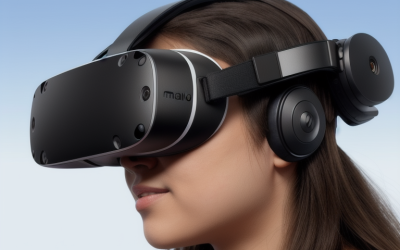
| VR headset tracking | Headset sensors track position directly | Natural depth and immersion | Heavier, and comfort over long flights varies |
If you already own a VR headset, tracking is built in, and you can skip most of this guide. If you fly on a monitor or triple screens, infrared and webcam options are the usual choice.
Physical Setup
Place the Camera Correctly
Mount the camera near the top or bottom of your monitor, facing you, with a clear view of the tracking points. Avoid placing it where sunlight shines directly into the lens, since infrared from the sun can confuse the sensor.
Wear or Position the Marker
If you use an infrared clip, attach it to a cap, headset band or glasses frame so it stays steady. Keep points in the same arrangement every session, and replace batteries or recharge before long flights.
Check Your Distance
Sit at a comfortable viewing distance, usually about an arm’s length from the monitor. Make sure your full range of head movement stays inside the camera’s field of view. If you lean toward the screen to read small gauges, test that movement as well.
Software Calibration and Sim Configuration
Install the tracking software, run its setup wizard and confirm that the camera sees every marker point. Define a center position, sometimes called the neutral pose, while sitting upright and looking straight ahead at the horizon. Save it, then start the simulator.
In the sim, enable the head-tracking input and assign a key or button to recenter the view. This reset is the most useful control you will use, because small drift accumulates during long sessions. In many sims you can also adjust response curves, which let you exaggerate small head movements to look far to the side without twisting your neck.
- Use a nonlinear curve so small head turns give modest view changes and larger turns sweep further.
- Add a deadzone around center to remove jitter from natural head tremor.
- Apply smoothing, but keep it light, because heavy smoothing makes the view feel delayed.
- Limit pitch and yaw ranges if you notice the camera clipping through the cockpit frame.
Tuning for Comfort
A tracking system that makes you uncomfortable will not get used. If the view feels twitchy, raise smoothing slightly or widen the deadzone. If it feels sluggish, reduce smoothing and check the frame rate, since a low frame rate makes tracking feel laggy regardless of settings.
Keep your seat position consistent between flights so the saved center stays accurate. Lighting changes can also shift results, so for infrared systems keep the room lighting predictable. Take breaks during long sessions, and stop if you feel motion discomfort or eye strain.
In 2026 many sims support several tracking standards, so check your simulator’s input menu for which devices it accepts before you invest in hardware.
Building a Profile for Each Aircraft
One tracking profile rarely suits every aircraft. A small light plane with a wide canopy gives you a lot of outside view, while an airliner cockpit has a deep instrument panel that you check in short glances. A fighter or helicopter pilot needs fast, wide looking motions to follow targets or the landing area. Saving separate profiles lets you load the response that suits each flight.
For airliner flying, use a gentle curve and a larger deadzone so the view stays steady while you glance between the primary displays and the overhead panel. For combat aircraft, increase yaw gain so a modest turn of your head swings the view to the side or behind you. For helicopters, give extra attention to pitch, since looking down and to the side is central to landing and hovering.
Think about the view’s position as well as its rotation. Full tracking of leaning forward lets you read small gauges by moving in, while rotation-only tracking holds your eye point fixed. Try both, and keep leaning enabled if it feels natural. If leaning causes the camera to pass through the cockpit frame, reduce its range.
Finally, document your best settings. Write down the multiplier, deadzone and smoothing values for each profile, and back up the configuration files after major simulator updates. Updates sometimes reset input settings, and having notes turns a lost afternoon into a few minutes of work.
Before You Start Checklist
- Confirm your simulator supports the tracking protocol your device uses.
- Find a USB port with enough power and bandwidth for the camera.
- Clear the monitor area so the camera has an unobstructed view.
- Pick one key or button for view recentering.
- Close other camera applications that might lock the device.
- Set aside time to calibrate while sitting in your normal flying posture.
Troubleshooting Common Issues
If tracking drifts, recenter more often and check for reflective objects behind you that can fool an infrared camera. If the view jumps, make sure the markers are not partly covered by your hair, cap or headset. If the camera loses you when you look far to the side, reduce the multiplier so a smaller head turn gives the same view change. If nothing responds in the sim, confirm that the tracking software is running and that the sim is listening for the right device.
Pairing Tracking With Your Other Controls
Head tracking works best when your hands stay on the flight controls, so review which buttons you still need for view control. Keep the recenter key on your throttle or stick, and consider removing old panning buttons that could fight the tracker. If you use a zoom control, set it to a modest range so you can lean in naturally without exaggerated jumps.
Finally, give yourself a few flights to adapt. Your brain needs time to trust the mapping between a small head turn and a large view change, and early sessions often feel awkward before they feel natural.
Glasses, Lighting and Other Practical Details
Reflective glasses frames can confuse infrared trackers, so adjust the camera angle or switch to a different clip position if the signal flickers. Keep the room lit evenly, avoid shiny objects behind your chair, and keep the camera lens clean. Small details like these often explain why tracking works one day and misbehaves the next.
Related guides
- Gaming Headset Noise Isolation Vs Active Noise Cancellation
- Does Gaming Headset Noise Cancellation Work On Microphone
- Trackir Vs Vr Vs Webcam Head Tracking For Flight Sims
Frequently Asked Questions
Is head tracking worth it without VR?
Many pilots find it helpful, because it makes checking instruments, gauges and the horizon much quicker. It is especially useful in combat or helicopter sims where situational awareness matters.
Can I use a webcam instead of an infrared device?
Yes, face-tracking software works with ordinary webcams. Expect less precision and more sensitivity to lighting than with dedicated infrared hardware.
Why does my view keep drifting?
Drift usually comes from slight changes in sitting posture, lighting or marker position. Assign a recenter button and tap it whenever the view feels off.
Does head tracking work with triple monitors?
It does, though you will not need as wide a response curve because the peripheral view is already on screen. Use a gentle multiplier and test yaw limits.
FAQ
Is head tracking worth it without VR?
Can I use a webcam instead of an infrared device?
Why does my view keep drifting?
Does head tracking work with triple monitors?
More from Amazon
Programs that pair well with the guide above. Offers and eligibility are set by Amazon and may change.
Free shipping on eligible items, Prime Video and more. Eligible new members can start with a free trial.
Start a Prime free trialAd-free music streaming. Eligible new subscribers can start with a free trial.
Try Music Unlimited freeA Prime membership for ages 18-24 with a trial period. Eligibility is set by Amazon.
See Prime for Young AdultsAudiobooks and podcasts to listen to on the go. Eligible new members can start with a free trial.
Try Audible freeAs an Amazon Associate we earn from qualifying purchases.