Our Top Picks
 ASUS ProArt PA278QV 27 Inch 1440p QHD Professional27 inches15.04 x 24.21 x 8.9 inches17 poundsCheck on Amazon
 ASUS ProArt PA279CRV 27 Inch 4K UHD USB-C27 Inch24.1 x 8.46 x 16.07 inches18.25 PoundsCheck on Amazon
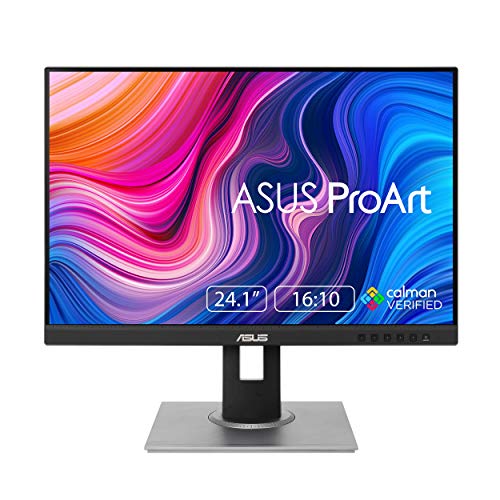 ASUS ProArt PA248QV 24 Inch WUXGA 16:10 Professional24 inches22.55 x 18.66 x 7.56 inches13.45 poundsCheck on Amazon
The best monitor for photo and video editing is a 27-inch IPS panel with a stated sRGB or DCI-P3 coverage figure, a resolution of at least 1440p, and ideally a factory calibration claim. This list covers ten listings: six ASUS ProArt models, a BenQ and a ViewSonic that target designers and editors, a Samsung 4K aimed at general use, and one plain Dell as a labeled runner-up. All color figures below are the sellers’ own claims, so read the table and the checklist before you buy. If you are still choosing the computer behind the screen, see our guide to the best PC for video editing.
Quick picks
ASUS ProArt PA278QV 27 Inch 1440p QHD Professional Monitor | Calman Verified, IPS, Height Adjustable, 100% sRGB, Eye Care, Anti-Glare, Ergonomic Stand, Rec.709
One of the home product options compared in this guide.
View on AmazonASUS ProArt PA279CRV 27 Inch 4K UHD USB-C HDR Professional Monitor for Mac | Calman Verified, Delta E<2, Daisy Chain, IPS, USB-C PD 96W, Height Adjustable, 99% DCI-P3, 99% Adobe RGB
One of the home product options compared in this guide.
View on AmazonASUS ProArt PA248QV 24 Inch WUXGA 16:10 Professional Monitor | (1920 X 1200), Calman Verified, Delta E<2, 100% sRGB, Eye Care, Anti-Glare, Ergonomic Stand, HDMI, DP
One of the home product options compared in this guide.
View on Amazon
ASUS ProArt PA247CV 24 Inch 1080p USB-C Professional Monitor | Calman Verified, Delta E<2, Daisy Chain, IPS, USB-C PD 65W, Ergonomic Stand, 100% sRGB, HDMI
One of the home product options compared in this guide.
View on Amazon
Samsung 27" ViewFinity S7 (S71H) 4K UHD IPS HDR10 High Resolution Monitor | Explore and buy 27 inch 4K UHD ViewFinity S7 S71H Monitor LS27H710EANXZA, Featuring IPS Panel, HDR10 and Eye Saver Mode
One of the home product options compared in this guide.
View on Amazon
BenQ PD2706U Mac-Ready Monitor 27” 4K UHD, 90W USB-C, 99% sRGB, 95% P3, DeltaE ≤3, DisplayHDR 400, IPS, AQCOLOR, Factory-Calibrated, Uniformity, HotKey Puck, Ergonomic, DisplayPort, KVM, USB Hub
One of the home product options compared in this guide.
View on Amazon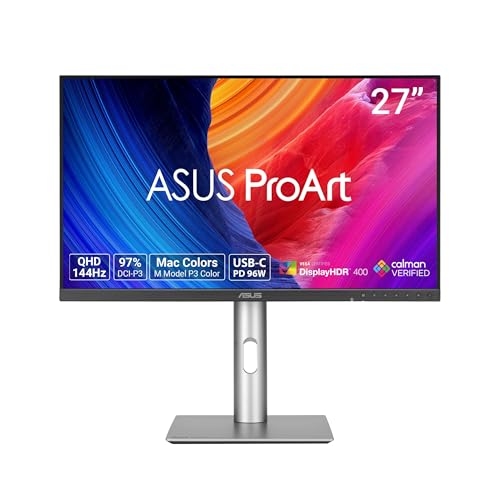
ASUS ProArt PA278CGRV 27 Inch 1440p USB-C Professional Monitor for Mac | Calman Verified, Delta E<2, Daisy Chain, Auto KVM, IPS, 144Hz, USB-C PD 96W, Ergonomic Stand, Light Sync, HDMI, DisplayPort
One of the home product options compared in this guide.
View on Amazon
ViewSonic VP2766-2K 27 Inch ColorPro 2K QHD IPS Monitor 90W USB-C 120Hz | Built for video editing, graphic design and animation, 120Hz refresh rate for fast-moving video, Pantone validated 100% sRGB
One of the home product options compared in this guide.
View on Amazon
ASUS ProArt PA278CV 27 Inch 1440p QHD USB-C Professional Monitor | Calman Verified, Delta E < 2, Daisy Chain, USB Hub, IPS,Ergonomic Stand, 100% sRGB, Eye Care, Rec.709
One of the home product options compared in this guide.
View on Amazon
Dell 27 Monitor - SE2726H - 27-inch FHD (1920x1080) 144Hz 1ms Display, in-Plane Switching (IPS) Technology, AMD FreeSync™, TÜV 3-Star 2X HDMI, Tilt
One of the home product options compared in this guide.
View on Amazon- ASUS ProArt PA279CRV – best for wide-gamut 4K work with claimed 99% Adobe RGB and DCI-P3
- BenQ PD2706U – best for a calibrated 4K IPS panel with a desk puck
- ASUS ProArt PA278CV – best for 1440p editing with USB-C and a hub
- ASUS ProArt PA278QV – best for a 1440p desktop panel without USB-C
- ViewSonic VP2766-2K – best for 120Hz plus a Pantone validation claim
- ASUS ProArt PA278CGRV – best for editors who also game
- ASUS ProArt PA248QV – best for a 16:10 24-inch workspace
- ASUS ProArt PA247CV – best for a compact USB-C color screen
- Samsung ViewFinity S7 S71H – best for general 4K use with unstated color figures
- Dell SE2726H – runner-up only, not a creator monitor
Comparison table
| Model | Size and resolution | Key specs as stated in the title | Best for |
|---|---|---|---|
| ASUS ProArt PA279CRV | 27 in, 4K UHD | USB-C PD 96W, Delta E under 2, 99% DCI-P3, 99% Adobe RGB, daisy chain | Photo and video grading |
| BenQ PD2706U | 27 in, 4K UHD | 90W USB-C, 99% sRGB, 95% P3, Delta E up to 3, DisplayHDR 400, KVM | Calibrated desktop work |
| ASUS ProArt PA278CV | 27 in, 1440p QHD | USB-C, Delta E under 2, USB hub, 100% sRGB, Rec.709 | USB-C 1440p editing |
| ASUS ProArt PA278QV | 27 in, 1440p QHD | IPS, 100% sRGB, Calman Verified, Rec.709, height adjustable | Value 1440p color work |
| ViewSonic VP2766-2K | 27 in, 2K QHD | IPS, 120Hz, 90W USB-C, Pantone validated 100% sRGB | Motion-heavy editing |
| ASUS ProArt PA278CGRV | 27 in, 1440p | 144Hz, USB-C PD 96W, Delta E under 2, Auto KVM, IPS | Edit and game |
| ASUS ProArt PA248QV | 24 in, 1920×1200 (16:10) | Delta E under 2, 100% sRGB, HDMI, DisplayPort | Small desks |
| ASUS ProArt PA247CV | 24 in, 1080p | USB-C PD 65W, Delta E under 2, 100% sRGB, daisy chain | Laptop docking |
| Samsung ViewFinity S7 S71H | 27 in, 4K UHD | IPS, HDR10, Eye Saver mode; color figures not in title | General 4K use |
| Dell SE2726H (runner-up) | 27 in, 1080p | 144Hz, 1ms, IPS, FreeSync, tilt-only stand | Casual use, not color work |
The ten monitors
ASUS ProArt PA279CRV
The listing describes a 27-inch 4K UHD IPS monitor with USB-C power delivery up to 96W, HDR, daisy chaining, and a claimed Delta E under 2. It also states 99% DCI-P3 and 99% Adobe RGB, the widest coverage figures in this group, which matters if you grade for cinema-style delivery or prepare photos for print. The “for Mac” wording hints at USB-C convenience, but check the listing for the exact USB-C mode and refresh rate, because neither is spelled out.
Pros
- 4K resolution with wide-gamut claims for both DCI-P3 and Adobe RGB
- 96W USB-C can run and charge a laptop from one cable
Cons
- 4K needs a capable graphics card for smooth timelines
- Likely the priciest ProArt here, so check the listing
Who it’s for: photographers and colorists who want gamut headroom. Who should skip it: editors who only publish to the web.
BenQ PD2706U
BenQ lists a 27-inch 4K UHD IPS monitor with 90W USB-C, 99% sRGB, 95% P3, Delta E of 3 or less, DisplayHDR 400, and a factory-calibrated claim with uniformity mentioned. A HotKey Puck, KVM and USB hub are also named. The puck is a small desk controller for switching color modes, a real convenience if you move between sRGB and P3 targets during a day. The “Mac-ready” label points to USB-C and scaling, not to any restriction for Windows.
Pros
- Factory-calibrated claim plus a puck for quick mode switching
- KVM and USB hub reduce cable clutter on a shared desk
Cons
- The Delta E of 3 or less claim is looser than the under-2 figures on the ASUS models
- No Adobe RGB figure appears in the title
Who it’s for: designers and editors who switch between color targets. Who should skip it: print photographers who need Adobe RGB.
ASUS ProArt PA278CV
This 27-inch 1440p QHD model lists USB-C, a USB hub, daisy chain, IPS, 100% sRGB, Rec.709, a Delta E under 2 claim, and Calman Verified. It reads like the USB-C sibling of the PA278QV below, so choose between the two on whether you want single-cable docking. The USB-C power delivery wattage is not in the title, so confirm it matches your laptop before you rely on it for charging.
Pros
- 1440p keeps GPU demands modest while giving a roomy workspace
- USB-C and a hub suit laptop users
Cons
- Only sRGB and Rec.709 are claimed, with no DCI-P3 figure
- Power delivery wattage is not stated
Who it’s for: laptop editors working mainly for web and YouTube. Who should skip it: anyone grading to wider gamuts.
ASUS ProArt PA278QV
The PA278QV is a 27-inch 1440p IPS monitor with Calman Verified, 100% sRGB, Rec.709, anti-glare treatment, and a height adjustable ergonomic stand. The title mentions no USB-C, which is the main reason to look at the PA278CV instead. It is the plainest ProArt in this group and a reasonable choice for a desktop PC, where a DisplayPort or HDMI cable is all you need. Check the listing for the exact port list.
Pros
- Straightforward 1440p sRGB panel with a calibration claim
- Ergonomic stand with height adjustment
Cons
- No USB-C or hub in the title
- No DCI-P3 or Adobe RGB claim
Who it’s for: desktop users who want a color-minded panel on a budget. Who should skip it: laptop users wanting one-cable docking.
ViewSonic VP2766-2K
ViewSonic markets this 27-inch 2K QHD IPS ColorPro monitor with 120Hz, 90W USB-C, and a Pantone validated 100% sRGB claim, and says it is built for video editing, graphic design and animation. The 120Hz rate makes cursor movement and timeline scrubbing feel smoother than a typical 60Hz screen. Pantone validation is a seller claim, so look for a calibration report on the listing before assuming a specific accuracy figure.
Pros
- 120Hz and 90W USB-C in a 1440p-class panel
- Pantone validated sRGB claim aimed at creators
Cons
- No DCI-P3 or Delta E figure appears in the title
- The “2K” label is looser than “QHD”, so confirm the pixel count
Who it’s for: editors who want smoother motion on a color-focused panel. Who should skip it: buyers who need wide-gamut figures.
ASUS ProArt PA278CGRV
This 27-inch 1440p IPS model combines creator claims (Calman Verified, Delta E under 2) with 144Hz, USB-C power delivery up to 96W, Auto KVM, daisy chain, and Light Sync lighting. It is the hybrid of this list, aimed at people who edit by day and play by night. The title states no DCI-P3 or Adobe RGB coverage, so its color claims stop at the accuracy figure and the calibration label.
Pros
- 144Hz makes it usable for gaming without leaving the ProArt line
- Auto KVM and 96W USB-C simplify a two-computer desk
Cons
- Gamut coverage is not stated in the title
- Gaming features may add cost that a pure editor will not use
Who it’s for: creators who also game. Who should skip it: pure editors who will never use 144Hz.
ASUS ProArt PA248QV
The PA248QV is a 24-inch WUXGA monitor at 1920×1200 in the 16:10 shape, with Calman Verified, Delta E under 2, 100% sRGB, HDMI and DisplayPort inputs, eye care and an anti-glare finish. The extra height compared to a 16:9 1080p panel gives more room for timelines and tool palettes. At this resolution it suits small desks and photo work better than detailed 4K retouching.
Pros
- 16:10 shape adds vertical space for editing software
- Compact size fits a crowded desk
Cons
- No USB-C in the title
- 1920×1200 is low for fine retouching
Who it’s for: hobbyists and second-screen users. Who should skip it: 4K video editors.
ASUS ProArt PA247CV
This 24-inch 1080p IPS monitor lists USB-C power delivery of 65W, daisy chain, a Delta E under 2 claim, 100% sRGB, an ergonomic stand and HDMI. The 65W figure suits many thin laptops, but check your own charger rating. It has the lowest resolution among the creator models, which makes it a compact companion screen rather than a main canvas for 4K footage.
Pros
- USB-C docking and a color accuracy claim at a small size
- Ergonomic stand
Cons
- 1080p limits workspace and sharpness
- 65W may be low for power-hungry laptops
Who it’s for: student editors and secondary screens. Who should skip it: 4K workflows.
Samsung ViewFinity S7 S71H
The title is mostly marketing copy for a 27-inch 4K UHD IPS monitor with HDR10 and Eye Saver mode, model LS27H710EANXZA. It gives no sRGB, DCI-P3 or Delta E figures, no calibration claim and no port list, so for color-critical work you would need to confirm those details on the listing or the manufacturer page. Treat it as a sharp general-purpose screen first.
Pros
- 4K IPS from a familiar brand
- HDR10 support for general viewing
Cons
- No color accuracy or coverage figures in the title
- Stand adjustments and ports are not stated
Who it’s for: mixed-use buyers who edit casually. Who should skip it: professional colorists.
Dell SE2726H (runner-up, not a creator monitor)
Not a color-work monitor – listed because it is a common cheap 27-inch pick. The listing shows 1080p, 144Hz, 1ms, IPS, AMD FreeSync, two HDMI ports and a tilt-only stand, with no color coverage claims. At 27 inches, 1080p looks softer than 1440p or 4K, which hurts retouching and timeline detail.
Pros
- Low-cost 27-inch IPS panel
- 144Hz for casual gaming
Cons
- 1080p at 27 inches reduces detail
- Tilt-only stand and no color claims
Who it’s for: a starter second screen. Who should skip it: anyone doing paid color work.
How we picked these
We compared the ten listings on screen size, resolution, panel type, stated color coverage, calibration claims, connectivity and ergonomics, using published specifications, manufacturer documentation and buyer reviews. Specific figures come only from listing titles, and anything unstated is marked “check the listing”. Nobody on the team used or measured these units. Treat Delta E, gamut and calibration numbers as seller claims until you confirm them in a calibration report that matches your exact unit. Where two listings looked like variants of the same product line, we said so instead of treating them as separate options.
What to look for in a photo and video editing monitor
Color gamut and where your work ends up
Choose the gamut by the destination of your work. Web images, YouTube and most corporate video are sRGB or Rec.709, so a panel claiming 100% sRGB covers them. Cinema-style grading and recent phone footage lean on DCI-P3, and print photographers often want Adobe RGB. Only the PA279CRV and the BenQ state anything beyond sRGB here. A wider gamut also needs color-managed software, otherwise colors can look oversaturated on screen.
Resolution, size and pixel density
At 27 inches, 1440p is the practical middle and 4K is sharper, helpful for retouching and for viewing 4K footage at full size. A 24-inch 1080p or 1920×1200 screen is acceptable for casual work but shows less detail. Very high resolution also shrinks interface elements unless you set display scaling, and the graphics card must drive it smoothly. Our GPU guide for video editing covers that side.
Accuracy claims and calibration
Delta E measures color error, and lower is better. The ASUS models claim under 2, while the BenQ states 3 or less. “Calman Verified” and “Pantone validated” are labels from verification programs, so look for a per-unit report if one is included. Even with factory calibration, a colorimeter every month or two helps keep screens matched, particularly if you run more than one display or share files with a client. A monitor with a hardware calibration mode stores the profile inside the screen, which keeps results steady when you switch computers.
Panel type, uniformity and HDR
IPS panels hold color well from side angles, which suits editing. Uniformity, meaning even brightness and color across the screen, matters for photo skies and gradients; the BenQ mentions it, others do not. HDR10 and DisplayHDR 400 on these monitors are entry-level, so do not count on them for true HDR grading. An anti-glare coating and controlled room lighting help more than most spec-sheet extras.
Connectivity and workflow
USB-C with power delivery helps laptop editors, but compare wattage with your charger: 65W, 90W and 96W appear in these titles. Daisy chain, KVM and USB hubs reduce clutter. Check DisplayPort and HDMI versions if you want 4K at higher refresh rates, since titles do not always say.
Ergonomics, stand and desk setup
Editing sessions run long, so the stand matters. Several ASUS titles mention an ergonomic stand and height adjustment, while the Dell runner-up is tilt-only. If you plan to mount two screens on arms, look for VESA support on the listing, since titles here rarely state it. Place the screen at arm’s length with the top edge near eye level, and keep ambient light steady so your eyes judge color the same way each day.
A quick listing checklist
- Panel type, resolution and screen size, matched to your delivery format
- sRGB, DCI-P3 or Adobe RGB percentage, and who states it
- Delta E figure and whether a unit-specific report is included
- USB-C wattage, hub ports and video input versions
- Warranty length and return window, especially for any renewed or third-party seller
| If you mostly do | Look for | Examples above |
|---|---|---|
| Web photos, YouTube | 100% sRGB, 1440p | PA278QV, PA278CV |
| Print photography | Adobe RGB claim, calibration | PA279CRV |
| Cinema-style color | DCI-P3 claim, 4K | PA279CRV, PD2706U |
| Laptop desk | USB-C with 65W or more, hub | PA278CV, PD2706U |
Mistakes buyers make
Buying a gaming monitor for color work is the common one: a high refresh rate does not guarantee color accuracy. Another is trusting an sRGB percentage without checking panel type or calibration. Buyers also forget that wide-gamut screens need color-managed software, and that a 4K monitor needs a capable graphics card. Many skip checking USB-C wattage and VESA support, then find the screen cannot charge their laptop or fit a monitor arm. Finally, some trust a factory report for years, when panels age and need fresh calibration. A last trap is judging a monitor by its HDR badge: DisplayHDR 400 and HDR10 labels describe signal support more than a bright, high-contrast panel, so they should not be the reason you pick one model over another. Read the sRGB and DCI-P3 numbers first, and leave HDR as a tiebreaker.
Verdict
For most editors the ASUS ProArt PA278CV is the sensible all-rounder, and the BenQ PD2706U is the pick for 4K with calibration extras. Choose the PA279CRV for the widest stated gamut, the PA278CGRV if you game too, and the PA278QV for a plain desktop budget. If the budget is tight, the PA248QV or PA247CV give a calibrated look at a smaller size, while the Samsung and Dell are best treated as general-use screens rather than color tools. Whichever you choose, confirm the return window and warranty on the listing.
Related guides
- Motherboard Fan Headers And Rgb Headers Explained
- Motherboards For Ryzen 7 5800X3D
- Power Supply For Rtx 5080 Builds
Frequently asked questions
Do you need a 4K monitor for photo and video editing?
Not always. A 27-inch 1440p panel gives a comfortable workspace and is easier on a mid-range graphics card, while 4K adds detail for retouching and lets you check a 4K timeline at one-to-one. If your delivery format is 1080p video or web images, 1440p is often enough. Choose 4K when you crop heavily, print large or edit 4K footage regularly.
What does sRGB, DCI-P3 and Adobe RGB coverage mean?
Each name is a color gamut, which is the range of colors a display can show. sRGB suits web images and most video, DCI-P3 is common in cinema and recent phones, and Adobe RGB is favored for print photography. A monitor claiming 100% sRGB covers web work, while 99% DCI-P3 or Adobe RGB suggests a wider range. These are seller claims, so check the spec sheet.
Is a factory-calibrated monitor accurate enough, or do you need a colorimeter?
Factory calibration gives a good starting point, but panels drift with age and the report only covers the unit it describes. If clients pay for color accuracy or you print, a hardware colorimeter and a calibration every month or two is cheap insurance. For hobby editing, a factory-calibrated monitor with sensible settings is usually fine.
Is a 144Hz or 120Hz refresh rate useful for editing?
It is a bonus rather than a requirement. Higher refresh rates make cursor movement and timeline scrubbing feel smoother, and they matter if the same screen doubles as a gaming display. Color work cares more about panel type, gamut and uniformity. Do not trade color accuracy for refresh rate unless you play games on the same monitor.
Can you use a gaming monitor for editing?
You can, but check the details. Many gaming monitors use IPS or VA panels with strong sRGB coverage, yet few state a calibration report or tight color error figures. If the listing gives an sRGB percentage and an IPS panel, it can serve casual editing. For paid work, a model with stated gamut coverage and calibration is the safer route.