Key takeaways
- Plug your primary gaming monitor into the fastest output, typically DisplayPort, using a certified cable rated for your resolution and refresh rate.
- Connect the secondary monitor to another output; HDMI is fine for a lower-refresh side display.
- Power both monitors on; Windows should detect them automatically within moments.
- If a monitor is not detected, reseat the cable and confirm you plugged into the GPU, not the motherboard.
A dual-monitor setup is one of the most quality-of-life-improving upgrades a PC gamer can make. Game on your primary display while keeping a guide, Discord, a stream, or a browser open on the second, all without alt-tabbing out of a fullscreen game. For streamers and content creators the benefit is even bigger: your game runs on one screen while chat, alerts, and your broadcasting software live on the other. Once you go dual, single-monitor life feels cramped.
Setting up two monitors is straightforward, but a few details, matching refresh rates, correct cable choices, and proper Windows arrangement, make the difference between a smooth experience and a frustrating one. This guide covers everything from physical connections to fine-tuning display settings so your dual setup works flawlessly for both gaming and multitasking in 2026.
Our top picks


As an Amazon Associate we earn from qualifying purchases at no extra cost to you. Ratings are shown as listed on Amazon.
⚡ Save on Your Next PC — Amazon Prime
Prime members get fast free shipping on the systems above, plus early access to Prime Day & Black Friday PC deals. New members get a 30-day free trial.
Watch: How to Set Up Dual Monitors for Gaming — Video Review
Check Your GPU Outputs
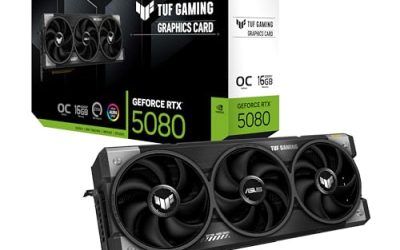
First, confirm your graphics card has enough ports and that you use the GPU outputs, not the motherboard ones, on a system with a dedicated card. Most modern GPUs offer multiple DisplayPort and HDMI connectors. For gaming, DisplayPort is generally preferred because it supports high refresh rates and adaptive sync more readily at higher resolutions. Match each monitor to the best available output rather than defaulting to whatever cable came in the box.
Connect and Power On
- Plug your primary gaming monitor into the fastest output, typically DisplayPort, using a certified cable rated for your resolution and refresh rate.
- Connect the secondary monitor to another output; HDMI is fine for a lower-refresh side display.
- Power both monitors on; Windows should detect them automatically within moments.
- If a monitor is not detected, reseat the cable and confirm you plugged into the GPU, not the motherboard.
Arrange Displays in Windows
Right-click the desktop and open Display settings. You will see both monitors as numbered boxes. Drag them to match their real physical positions so your mouse moves between them naturally, and align their tops so the cursor does not snag on an edge. Set your gaming monitor as the Main display so games and the taskbar default to it. Choose “Extend these displays” rather than duplicate so each screen shows different content.
Match Settings for Each Screen
Select each monitor individually and set its native resolution and its highest available refresh rate; Windows often defaults a high-refresh panel to 60Hz, so bump your gaming display to its full rate manually. If your two monitors have different refresh rates, that is fine in extended mode. Enable G-Sync or FreeSync on the gaming display through your GPU control panel for tear-free play, and you are ready to game on one screen while working on the other.
Tips
- Verify your gaming monitor is set to its full refresh rate in Windows; a mismatched 60Hz default is the most common oversight.
- A dual-monitor arm or a matched two-pack of identical monitors gives the cleanest, best-aligned setup.
- Set games to Fullscreen rather than Borderless if you notice the game losing focus when you click the second screen, or use Borderless if you want easy switching.
- Keep bezels close and heights level so content flows naturally between panels.
Frequently Asked Questions
Do both monitors need to be the same?
No. In extended mode Windows handles different sizes, resolutions, and refresh rates independently. A matched pair looks cleaner and aligns perfectly, but mixing a high-refresh gaming panel with a standard secondary display works fine.
Will a second monitor lower my gaming FPS?
The impact is usually small, but running a demanding video or app on the second screen does use some GPU resources. For maximum gaming performance, keep the secondary display showing lightweight content while you play.
Should I use HDMI or DisplayPort?
Use DisplayPort for your primary gaming monitor because it handles high resolutions and refresh rates plus adaptive sync most reliably. HDMI is perfectly adequate for a secondary display running everyday apps at a standard refresh rate.
Why is my second monitor not detected?
Most often the cable is loose or plugged into the motherboard instead of the GPU. Reseat it, try a different port or cable, and use the Detect button in Windows Display settings. Confirm the monitor input source matches the cable you used.
Conclusion
A dual-monitor setup transforms both gaming and multitasking, letting you play on one screen while everything else lives on the other. Use your GPU’s DisplayPort for the primary panel, extend rather than duplicate the displays, arrange them to match their physical layout, and set each to its correct resolution and full refresh rate. Nail those details and you will wonder how you ever managed with just one screen.