Key takeaways
- A Phillips #0 screwdriver for the tiny M.2 standoff screw.
- The M.2 mounting screw and standoff; if your board lost them, a cheap screw kit solves it instantly.
- An anti-static approach: touch a bare metal part of the case to discharge before handling components.
- Optional but recommended: the heatsink that ships with your board or drive for PCIe 4.0 and 5.0 speeds.
Installing an M.2 NVMe SSD is the highest impact-per-minute upgrade in PC building. In under ten minutes you can add a drive that reads at 7,000MB/s or more, slashing game load times, shrinking Windows boot to a few seconds, and eliminating the texture pop-in that plagues large open-world titles on slower storage. A modern PCIe 4.0 drive like the Samsung 990 PRO or a PCIe 5.0 monster like the WD_Black SN8100 makes older SATA SSDs feel ancient.
The physical install is genuinely simple, but there are a few gotchas that trip people up: choosing the right slot for full bandwidth, dealing with the tiny mounting screw, and enabling the drive in Windows afterward. This guide covers the whole process from slot selection to formatting so your new SSD shows up and runs at full speed.
Our top picks
 Samsung SSD 990 PRO 2TB
- Consider this a cheat code
- Gen4 steps up with faster transfer speeds and…
- The speed you need for any occasion
 ASTARON M.2 SSD Screws Kit
- 【Widely Compatible】- The kit is compatible with various…
- 【NVMe SSD Quantity】-Studs of different heights*8、Screws*8,Black Carabiner*2, Magnetic…
- 【Magnetic screwdriver】-Since M2 screws are too small, we…
 46PCS NVME M.2 SSD Mounting Screws M.2
- 【M.2 computer screw】:easy installation with motherboard screw,standoff to…
- 【Ssd screw with screwdriver】:magnetic screwdriver prevent tiny screw,standoff…
- 【Durable material】:computer screw,standoff and screwdriver are made of…
| Product | Key specs | |
|---|---|---|
| Samsung SSD 990 PRO 2TB | Consider this a cheat code Gen4 steps up with faster transfer speeds and… The speed you need for any occasion | Check price |
| ASTARON M.2 SSD Screws Kit | 【Widely Compatible】- The kit is compatible with various… 【NVMe SSD Quantity】-Studs of different heights*8、Screws*8,Black Carabiner*2, Magnetic… 【Magnetic screwdriver】-Since M2 screws are too small, we… | Check price |
| 46PCS NVME M.2 SSD Mounting Screws M.2 | 【M.2 computer screw】:easy installation with motherboard screw,standoff to… 【Ssd screw with screwdriver】:magnetic screwdriver prevent tiny screw,standoff… 【Durable material】:computer screw,standoff and screwdriver are made of… | Check price |
 SANDISK 500GB Optimus 5100 NVMe SSD | SPEED UP PROJECTS CREATE AND STORE MORE IT GOES WHERE YOU GO | Check price |
 SIX NVME M.2 SSD PCIe 4.0-1TB m.2 | Unleash Upgraded power - Employing PCIe Gen4x4 High… Work and Play - Whether you pursue science… Match ur Next-level M.2 SSD - Compatibility ready… | Check price |
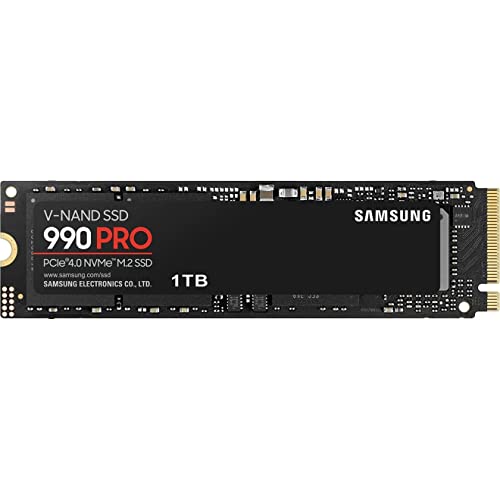 Samsung SSD 990 PRO 1TB | Get random read/write speeds that are 40%/55% faster… Use less power and get more performance Samsung's own nickel-coated controller delivers effective thermal control | Check price |
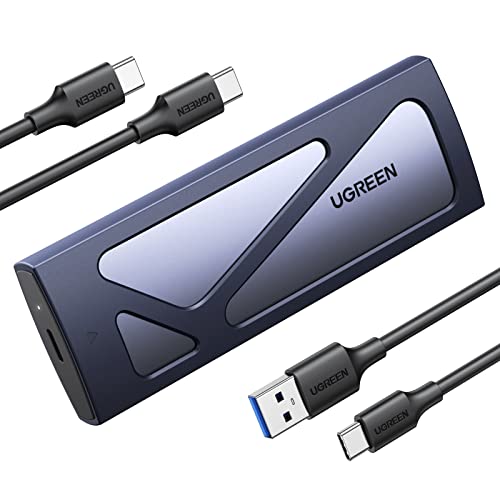 UGREEN SSD Enclosure Tool-Free USB C External | 10Gbps NVMe Enclosure: With the latest USB 3.2… Tool-free SSD Enclosure: Tool-free NVMe SSD enclosure for… Broad Compatibility: The UGREEN M.2 NVMe SSD enclosure… | Check price |
As an Amazon Associate we earn from qualifying purchases at no extra cost to you.
⚡ Save on Your Next PC — Amazon Prime
Prime members get fast free shipping on the systems above, plus early access to Prime Day & Black Friday PC deals. New members get a 30-day free trial.
Watch: How to Install an M.2 NVMe SSD — Video Review
Pick the Right M.2 Slot
Most modern boards have two or more M.2 slots, and they are not equal. The primary slot wired directly to the CPU offers the fastest lanes, PCIe 5.0 on current boards, and is where your boot drive should go. Secondary slots often run through the chipset at PCIe 4.0. Check your motherboard manual, because populating certain M.2 slots can disable SATA ports or share bandwidth with a PCIe slot.
Gather Tools and Hardware
- A Phillips #0 screwdriver for the tiny M.2 standoff screw.
- The M.2 mounting screw and standoff; if your board lost them, a cheap screw kit solves it instantly.
- An anti-static approach: touch a bare metal part of the case to discharge before handling components.
- Optional but recommended: the heatsink that ships with your board or drive for PCIe 4.0 and 5.0 speeds.
Physically Install the Drive
Power down and unplug the PC. Remove the M.2 heatsink cover if present. Insert the SSD into the slot at roughly a 30-degree angle, seat it fully so the gold contacts disappear, then press the far end down flat and secure it with the mounting screw. Do not overtighten, just snug. If your board uses a toolless latch instead of a screw, simply clip it down. Reattach the heatsink with its thermal pad film peeled off.
Initialize and Format in Windows
Boot up, then right-click the Start button and open Disk Management. Windows will prompt you to initialize the new disk; choose GPT. Right-click the unallocated space, select New Simple Volume, assign a drive letter, and format as NTFS. Your drive is now ready. To confirm it is running at full speed, a quick benchmark should show sequential reads near the drive’s rated figure.
Tips
- Use the CPU-connected slot for your fastest drive and the game library on a chipset slot if needed.
- Always install the heatsink on PCIe 4.0 and 5.0 drives; without cooling they can thermally throttle under sustained loads.
- If the drive does not appear, recheck it is fully seated and confirm the slot is enabled in BIOS.
- Cloning your OS to the new drive? Use the drive maker’s migration tool, then set it as the boot device in BIOS.
Frequently Asked Questions
Do I need PCIe 5.0 for gaming?
Not really. PCIe 4.0 drives around 7,000MB/s already saturate what current games can use, and DirectStorage benefits are modest. PCIe 5.0 helps content creators and future-proofing more than raw frame rates today.
Why is my new SSD not showing up?
Almost always it just needs to be initialized and formatted in Disk Management, or it is not fully seated in the slot. Occasionally a shared-bandwidth slot needs enabling in BIOS. Check those three things in order.
Do M.2 SSDs need a heatsink?
Fast PCIe 4.0 and 5.0 drives benefit from one to prevent throttling during long transfers or heavy gaming loads. Many motherboards include an M.2 heatsink; use it. Slower drives can run fine bare.
Can I use an M.2 SSD as extra storage, not the boot drive?
Absolutely. Install it in any free M.2 slot, format it, and use it as a dedicated game library. NVMe game drives dramatically cut load and streaming stutter compared to a mechanical hard drive.
Conclusion
Adding an NVMe SSD is fast, cheap, and transformative. Pick the right slot for the bandwidth you want, seat the drive at an angle and screw it down, fit a heatsink, then initialize and format in Windows. Ten minutes later you have blazing load times and a snappier system that makes every game and application feel instant.
FAQ
Do I need PCIe 5.0 for gaming?
Why is my new SSD not showing up?
Do M.2 SSDs need a heatsink?
Can I use an M.2 SSD as extra storage, not the boot drive?
More from Amazon
Programs that pair well with the guide above. Offers and eligibility are set by Amazon and may change.
Free shipping on eligible items, Prime Video and more. Eligible new members can start with a free trial.
Start a Prime free trialAd-free music streaming. Eligible new subscribers can start with a free trial.
Try Music Unlimited freeA Prime membership for ages 18-24 with a trial period. Eligibility is set by Amazon.
See Prime for Young AdultsAudiobooks and podcasts to listen to on the go. Eligible new members can start with a free trial.
Try Audible freeAs an Amazon Associate we earn from qualifying purchases.