Key takeaways
- Ensure you have a clear front-to-back airflow path: intake fans at the front, exhaust at the rear and top.
- Tidy cables away from fan blades and airflow channels so air moves freely to the cooler.
- Remove restrictive dust filters if they are clogged, or clean them, since a blocked filter starves your intake.
- Make sure your case has enough fans; a single exhaust with no intake creates a hot, stagnant interior.
What's inside
A hot CPU is a slow CPU. When your processor climbs past its thermal limit, usually around 95 to 100 degrees Celsius on modern chips, it throttles clock speeds to protect itself, and your frame rate takes the hit. Sustained high temperatures also shorten component life and make your fans scream. If your gaming sessions come with a whining cooler and mysterious performance dips, your CPU temperatures are almost certainly the culprit.
The encouraging news is that lowering CPU temps rarely requires expensive new hardware. Most overheating comes down to airflow, thermal paste, fan curves, and dust, all of which you can address in an afternoon. This guide walks through the fixes in order of impact and effort, from free software tweaks to a fresh cooler upgrade, so you can bring your temperatures down and keep your CPU running at full speed.
As an Amazon Associate we earn from qualifying purchases at no extra cost to you.




⚡ Save on Your Next PC — Amazon Prime
Prime members get fast free shipping on the systems above, plus early access to Prime Day & Black Friday PC deals. New members get a 30-day free trial.
Watch: How to Lower CPU Temperatures — Video Review
Measure Your Baseline First
Before changing anything, install a monitoring tool and record your CPU temperature at idle and under a sustained gaming or stress load. Idle should sit in the 30s to low 40s Celsius; gaming loads in the 60s to 70s are healthy, while consistently hitting the 90s under load signals a problem. Knowing your starting numbers lets you measure whether each fix actually helped.
Improve Case Airflow
- Ensure you have a clear front-to-back airflow path: intake fans at the front, exhaust at the rear and top.
- Tidy cables away from fan blades and airflow channels so air moves freely to the cooler.
- Remove restrictive dust filters if they are clogged, or clean them, since a blocked filter starves your intake.
- Make sure your case has enough fans; a single exhaust with no intake creates a hot, stagnant interior.
Reapply Thermal Paste and Reseat the Cooler
Thermal paste dries out over two to four years, and old or poorly applied paste is a top cause of high temps. Remove the cooler, clean off the old paste with isopropyl alcohol, apply a fresh pea-sized dot of quality paste, and reseat the cooler with even mounting pressure. On Intel LGA 1700 systems, a contact frame can correct the slight bending that raises temps on stock brackets. This single fix often drops peak temperatures by a large margin.
Tune Fans and Consider a Cooler Upgrade
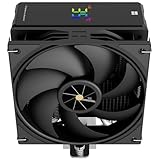
Set a more aggressive fan curve in your BIOS or fan software so the cooler ramps up sooner under load rather than letting heat build. If you are still throttling after airflow and paste fixes, your cooler may simply be undersized. A capable air tower like a Thermalright Peerless Assassin or a 240mm-plus AIO liquid cooler such as a Thermalright Aqua Elite or ARCTIC Liquid Freezer handles modern high-core-count CPUs far better than a stock cooler.
Tips
- Undervolting your CPU in BIOS can cut temperatures significantly with little to no performance loss.
- Keep your room cool and your PC off the carpet; ambient temperature and blocked intakes matter more than people think.
- Clean dust from the cooler fins and fans every few months, as a dust-caked heatsink loses efficiency fast.
- Verify all case and CPU fans are actually spinning and plugged into the correct headers after any maintenance.
Frequently Asked Questions
What CPU temperature is too high?
Sustained temperatures in the 90s Celsius under gaming load indicate throttling and a cooling problem. Brief spikes to those numbers during heavy stress tests can be normal on some modern chips, but you want gaming to stay in the 60s to 70s.
How often should I replace thermal paste?
Every two to four years for most users, or whenever you remove the cooler. If your temperatures have crept up over time on an older build, dried paste is one of the first things to check and one of the cheapest to fix.
Is liquid cooling necessary?
Not for most gamers. A quality air tower cooler handles the majority of CPUs beautifully. Liquid cooling helps with the hottest high-core-count chips, tight cases, or those wanting quieter operation and a cleaner look, but it is a choice, not a requirement.
Can dust really cause overheating?
Absolutely. A layer of dust on cooler fins and fan blades acts as insulation and blocks airflow, and it is one of the most common reasons temperatures rise over months of use. Regular cleaning is the simplest maintenance you can do.
Conclusion
Lowering CPU temperatures is usually a matter of airflow, fresh thermal paste, smart fan curves, and dust control rather than expensive hardware. Measure your baseline, fix the airflow path, reapply paste and reseat the cooler, then tune fans or upgrade if needed. Get your temps under control and your CPU rewards you with full clock speeds, quieter fans, and a longer life.