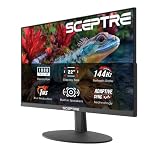
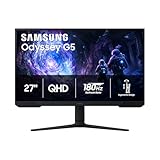
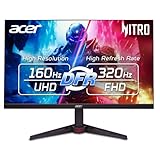
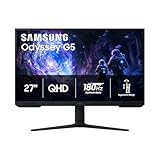
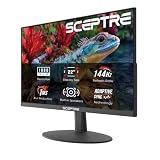
Our Top Picks
The best 144Hz gaming monitor for most people in 2026 is a 27-inch 1440p IPS panel running at 165 to 180Hz, with the MSI MAG 275QF as a representative pick. If your graphics card is modest, a 24-inch 1080p 144Hz screen such as the Dell SE2426HG is the cheaper route, and if you own a high-end card, the 32-inch 4K LG 32GR93U gives you 144Hz with HDMI 2.1 for consoles too. Pick resolution first, then panel type, then ports.
Quick comparison of the picks
| Pick | Best for | Size / resolution / refresh | Panel | Price tier |
|---|---|---|---|---|
| Dell SE2426HG | Budget esports | 24 in, 1920×1080, 144Hz class or higher | Fast IPS-class LCD | Budget |
| MSI MAG 275QF | Best overall 1440p | 27 in, 2560×1440, 180Hz | Rapid IPS | Mid-range |
| Gigabyte GS32QC | Big curved screen on a budget | 32 in, 2560×1440, up to 170Hz | VA, curved | Mid-range |
| LG 32GR93U | 4K with consoles and PC | 32 in, 3840×2160, 144Hz | IPS, HDMI 2.1 | Upper-mid |
| ASUS ROG Swift OLED PG32UCDM | Premium image quality | 32 in, 3840×2160, up to 240Hz | QD-OLED | Premium |
Where to buy
Dell SE2426HG —

Dell 24 240Hz Gaming Monitor - SE2426HG - 23.8-inch FHD (1920x1080) 240Hz Display, in-Plane Switching (IPS) Technology, AMD FreeSync™ Premium, TÜV 3-Star, 2X HDMI, DisplayPort 1.4, Tilt
Named directly in the article's comparison table as the budget 24-inch 144Hz-class pick.
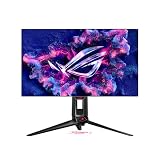
View on AmazonASUS ROG Swift OLED PG32UCDM —

ASUS ROG PG32UCDM 32 Inch 4K 240Hz OLED Gaming Monitor QD-OLED | UHD, Custom Heatsink, 0.03ms, G-SYNC Compatible, USB-C 90W, True 10-bit, Graphene Film, 99% DCI-P3, for PS5 and Xbox
Named directly in the article's comparison table as the premium 4K OLED pick.
View on AmazonThe other picks in this comparison are not currently tracked for live pricing on this site.
Specifications above follow each manufacturer’s published sheet at the time of writing; always confirm the exact refresh rate of the variant you are buying, because several of these lines ship in more than one revision.
Best budget: Dell SE2426HG
A 24-inch 1080p panel is still the sensible choice if your GPU is an older card or an entry-level current one, because 1080p at 144 frames per second asks far less of it than 1440p. Reviewers such as DisplayNinja list the SE2426HG as a top 1080p high-refresh pick. At 24 inches, 1080p gives roughly 92 pixels per inch, which looks acceptable for fast shooters where you care more about frame rate than fine detail.
The trade-off is desktop sharpness. Text looks softer than on a 27-inch 1440p panel, and there is little headroom if you later upgrade to a much stronger graphics card. Buy it if budget and frame rate matter more than image detail.
Best overall: MSI MAG 275QF
TechSpot rates the MAG 275QF as one of the best-performing 1440p 180Hz LCDs for response times, which is exactly what a 144Hz buyer wants: a panel that keeps up when you actually reach those frame rates. A 27-inch 1440p screen has about 109 pixels per inch, a clear step up from 1080p without needing a flagship GPU.
The compromise is contrast. Like most fast IPS panels, blacks look gray in a dark room compared with VA or OLED. If you mostly play competitive titles in a lit room, that rarely matters.
Best curved large screen: Gigabyte GS32QC
TechRadar picks the GS32QC as its budget 1440p choice. A 32-inch 1440p screen has only about 92 pixels per inch, so it is sharp enough for gaming at normal distance but not for dense text work. The VA panel gives deeper blacks than IPS, which helps in moody single-player games, though dark scenes can smear slightly in fast motion.
Best for 4K and consoles: LG 32GR93U
TechSpot recommends this 32-inch 4K IPS as its mid-range 4K option. Its HDMI 2.1 input is the key detail: a PlayStation 5 or Xbox Series X can send 4K at 120Hz over it, while many older monitors stop at 60Hz. On PC, running 4K at 144 frames per second demands a very strong GPU, so many players drop to 1440p inside the game and keep the 4K panel for everything else.
Best premium: ASUS ROG Swift OLED PG32UCDM
RTINGS names this as the best 4K high-refresh monitor in its testing lists. OLED gives near-instant pixel response and true blacks, so motion looks cleaner than any LCD at the same refresh rate. The trade-offs are the price tier, the risk of image retention on static HUD elements if you ignore the panel-care features, and lower full-screen brightness than a good LCD.
Worked calculation: can your cable carry it?
Refresh rate means nothing if your cable cannot carry the signal. A quick estimate multiplies width by height by refresh rate by 24 bits of color, then adds roughly 10 to 20 percent for signal overhead.
| Mode | Raw data rate | With overhead (approx.) | Fits on |
|---|---|---|---|
| 1920×1080 at 144Hz | 7.2 Gbps | about 8 Gbps | HDMI 2.0, DisplayPort 1.2 and up |
| 2560×1440 at 144Hz | 12.7 Gbps | about 14 Gbps | DisplayPort 1.4, HDMI 2.1; HDMI 2.0 is borderline |
| 3840×2160 at 144Hz | 28.7 Gbps | about 31 Gbps | HDMI 2.1, or DisplayPort 1.4 with compression (DSC) |
DisplayPort 1.4 carries about 25.9 Gbps of usable data and HDMI 2.1 up to 48 Gbps of link rate, per the VESA and HDMI Forum specifications. That is why a 4K 144Hz monitor must lean on DSC over DisplayPort 1.4, while HDMI 2.1 handles it directly.
Panel type decision guide
- IPS: best all-round color and viewing angles, fast enough for almost everyone. Pick it by default.
- VA: higher contrast and cheaper at large sizes, but some dark-scene smearing. Good for single-player and movies.
- OLED: best motion clarity and blacks, higher cost, and needs sensible static-image habits.
- TN: now mostly limited to very cheap esports screens; poor color is the price of speed.
How to choose: match the screen to your GPU
Choose a resolution your graphics card can drive at or near the monitor’s refresh rate. As a rule of thumb, entry-level GPUs suit 1080p at 144 frames, mid-range cards suit 1440p at 100 to 144 frames in demanding titles, and only high-end cards handle 4K at 100 or more frames. Adaptive sync (FreeSync or G-SYNC Compatible) matters more than hitting the exact cap, because it hides dips between 60 and 144 frames. Finally, enable the refresh rate in your operating system and the GPU control panel; plenty of people run a 144Hz monitor at 60Hz for months without noticing.
Settings that make 144Hz actually work
- Set the refresh rate in Windows. Open Display settings, then Advanced display, and choose the highest refresh rate listed. Monitors often default to 60Hz when first connected, and this is the most common reason a new screen feels no different.
- Enable adaptive sync. Turn on FreeSync or G-SYNC Compatible in the monitor menu and in the GPU control panel. It lets the display follow your frame rate, so a dip from 144 to 90 frames does not produce tearing or stutter.
- Cap frames just below the refresh rate. A cap of about 3 frames under the maximum, for example 141 on a 144Hz screen, keeps adaptive sync active and reduces input lag from a full frame queue.
- Use overdrive on the middle setting. The highest overdrive level often causes inverse ghosting, a bright trail behind moving objects. The medium setting is usually the cleanest compromise on IPS panels.
- Check HDR carefully. Many monitors advertise HDR but have too little brightness to deliver it. Leave HDR off on entry-level panels unless a game looks clearly better.
Frame time: why 144Hz feels different
At 60Hz each frame stays on screen for about 16.7 milliseconds. At 144Hz that shrinks to about 6.9 milliseconds, which is a saving of roughly 9.8 milliseconds per refresh before the game, the GPU or your mouse add their own delay. The jump from 60 to 144 is the biggest gain; going from 144 to 240 only trims a further 2.8 milliseconds. That is the reason most players are better served by a good 144Hz or 165Hz panel with strong color than by an expensive 360Hz screen they cannot feed with frames.
Mistakes to avoid
- Buying by refresh rate alone. A 144Hz label says nothing about response time. Look for independent measurements of how quickly pixels change, because slow panels smear at high refresh rates.
- Ignoring stand adjustability. Height and tilt adjustment matter more for comfort than a few extra Hz. Check whether the stand supports a VESA mount if you plan to use an arm.
- Pairing a 4K screen with a weak GPU. You end up playing at lowered settings or upscaled resolution, which wastes the panel.
- Using the wrong port. Plugging a 1440p 144Hz monitor into HDMI 1.4 can cap you at 60Hz. Use DisplayPort or an HDMI 2.1 port.
Frequently Asked Questions
Is 144Hz still worth it in 2026?
Yes. 144Hz is the point where motion becomes noticeably smoother than 60Hz, and screens at this level are inexpensive. Moving beyond 240Hz brings smaller gains that mostly matter to competitive players.
Do I need a special cable for 144Hz?
Often the cable in the box is fine, but use DisplayPort or an HDMI 2.1 certified cable for higher resolutions. An old HDMI 1.4 cable can limit you to 60Hz at 1080p or 1440p.
Is 1440p or 1080p better for 144Hz gaming?
1440p looks sharper, but it needs a stronger GPU to reach 144 frames. If your card struggles, 1080p at a steady 144 frames feels better than 1440p at 70.
Does 144Hz help if my game runs below 144 frames?
It still helps with adaptive sync, which matches the screen to your frame rate and removes tearing. You will not get the full smoothness of 144 frames, though.
Can I use a 144Hz monitor with a PS5 or Xbox?
Consoles output up to 120Hz, so a 144Hz monitor with HDMI 2.1 can run supported games at 120Hz. Without HDMI 2.1, 4K is usually capped at 60Hz.