Key takeaways
- Confirm your PC can push frame rates near the panel’s refresh rate before buying high-Hz.
- Set your monitor’s refresh rate manually in your OS display settings; it may default to 60Hz.
- Enable FreeSync or G-SYNC in both the monitor menu and your GPU driver to stop tearing.
- For most gamers, 144Hz is the value sweet spot; save 240Hz-plus for competitive esports.
What's inside
Refresh rate is one of the biggest upgrades to how a game feels, yet it is often overlooked next to resolution and graphics settings. It controls how smooth and responsive everything on screen appears, and once you have gamed on a high-refresh monitor, going back to a standard one feels sluggish. In 2026, high refresh rates have become affordable enough that they belong on almost every gaming build.
This guide explains what refresh rate actually is, how it works together with your frame rate, why sync technologies matter, and how to pick the right refresh rate for the games you play. By the end you will understand exactly what those Hz numbers mean and how much they are worth to you.
As an Amazon Associate we earn from qualifying purchases at no extra cost to you. Product prices and availability are accurate as of the date shown and are subject to change.






⚡ Save on Your Next PC — Amazon Prime
Prime members get fast free shipping on the systems above, plus early access to Prime Day & Black Friday PC deals. New members get a 30-day free trial.
Watch: What Is Refresh Rate? Gaming Monitors Explained — Video Review
What Refresh Rate Actually Measures
Refresh rate, measured in hertz (Hz), is how many times per second your monitor redraws the image. A 60Hz panel updates 60 times a second; a 144Hz panel updates 144 times. Higher refresh rates show you more frames of motion each second, which makes movement look smoother, reduces motion blur, and lets you react faster because new information appears on screen sooner. It is a hardware ceiling: a 144Hz monitor can display up to 144fps, no matter how powerful your GPU is.
Refresh Rate Versus Frame Rate
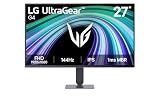
These two work as a pair. Frame rate (fps) is how many frames your GPU produces; refresh rate (Hz) is how many your monitor can show. To feel the benefit of a 144Hz panel like the LG Ultragear 24-inch or the ASUS TUF Gaming VG249QE5A, your PC also needs to push frame rates near that number. If your GPU only manages 60fps, a 144Hz monitor still helps with responsiveness and sync, but you get the full smoothness only when frame rate and refresh rate climb together.
Why 144Hz Is the Sweet Spot
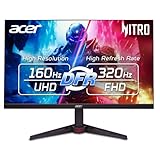
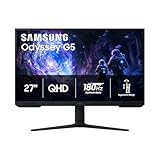
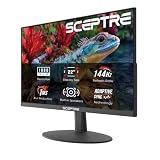
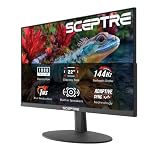
The jump from 60Hz to 144Hz is dramatic and instantly noticeable; the jump from 144Hz to 240Hz is real but far more subtle. For that reason, 144Hz to 165Hz panels such as the Sceptre 165Hz IPS or the MSI Pro MP243L hit the best balance of smoothness, affordability, and achievable frame rates for most gamers. Competitive esports players chasing every advantage may want 240Hz or higher, but for the vast majority, 144Hz delivers most of the benefit at a fraction of the cost.
The Role of Adaptive Sync
When your frame rate and refresh rate do not match, you can get screen tearing, where the image looks split mid-frame. Adaptive sync technologies, FreeSync on the monitor side and G-SYNC compatibility, fix this by matching the display’s refresh to your GPU’s output in real time. Most modern gaming monitors, including budget FreeSync panels, support this, so make sure it is enabled in both your monitor menu and your graphics driver for tear-free, smooth gameplay.
Matching Refresh Rate to Your Games
Fast-paced shooters, racing games, and fighting games benefit most from high refresh rates because quick, precise motion is central to how they play. Slower strategy games, turn-based titles, and cinematic single-player experiences gain far less. If you mostly play competitive multiplayer, prioritize refresh rate; if you play slower or story-driven games, you can lean toward resolution and image quality instead.
Tips
- Confirm your PC can push frame rates near the panel’s refresh rate before buying high-Hz.
- Set your monitor’s refresh rate manually in your OS display settings; it may default to 60Hz.
- Enable FreeSync or G-SYNC in both the monitor menu and your GPU driver to stop tearing.
- For most gamers, 144Hz is the value sweet spot; save 240Hz-plus for competitive esports.
Frequently Asked Questions
Is 144Hz a big upgrade from 60Hz?
Yes, it is one of the most noticeable upgrades in PC gaming. Motion looks dramatically smoother and the game feels more responsive, which is why 144Hz has become the standard recommendation.
Do I need a powerful PC to use a 144Hz monitor?
To hit 144fps in demanding games you need a capable GPU, but even at lower frame rates a 144Hz panel still improves responsiveness and works with adaptive sync to reduce tearing.
What is the difference between 144Hz and 240Hz?
Both are smooth, but the gap between them is far smaller than the jump from 60Hz to 144Hz. 240Hz mainly benefits competitive players; most gamers will not feel it is worth the extra cost.
Does refresh rate matter for slow games?
Less so. Turn-based and cinematic games gain little from high refresh rates, so if that is what you play, put your budget toward resolution or panel quality instead.
Conclusion
Refresh rate defines how smooth and responsive your games feel, and in 2026 a 144Hz monitor is the easiest big-impact upgrade you can make. Pair it with a GPU that can push frame rates near that number, enable adaptive sync to eliminate tearing, and you will get a level of smoothness that is genuinely hard to give up once you have experienced it.